
Operate FX automated trading (EA) and VPS on your smartphone
FX automated trading (EA) is something that, when you try to set it up and run it, even if you use a PC daily and have a substantial interest in investing, the hurdle is high enough to make anyone hesitate, I think.
Therefore, we considered starting a service where FX automated trading (EA) is installed on a VPS and can be running immediately after installation, but since the confusion after installation by customers who purchased it is easy to predict, we decided to suspend it for the time being.
However, during the design stage of that service, I found that using a VPS on a smartphone is surprisingly convenient, and you can do quite advanced things with a smartphone, so I would like to write down my impressions of using it on a smartphone.
VPS cannot be configured entirely on a smartphone, so first connect to the VPS from a PC and install MT4 and the EA, and get them running.
PC MT4 and EA setup screen
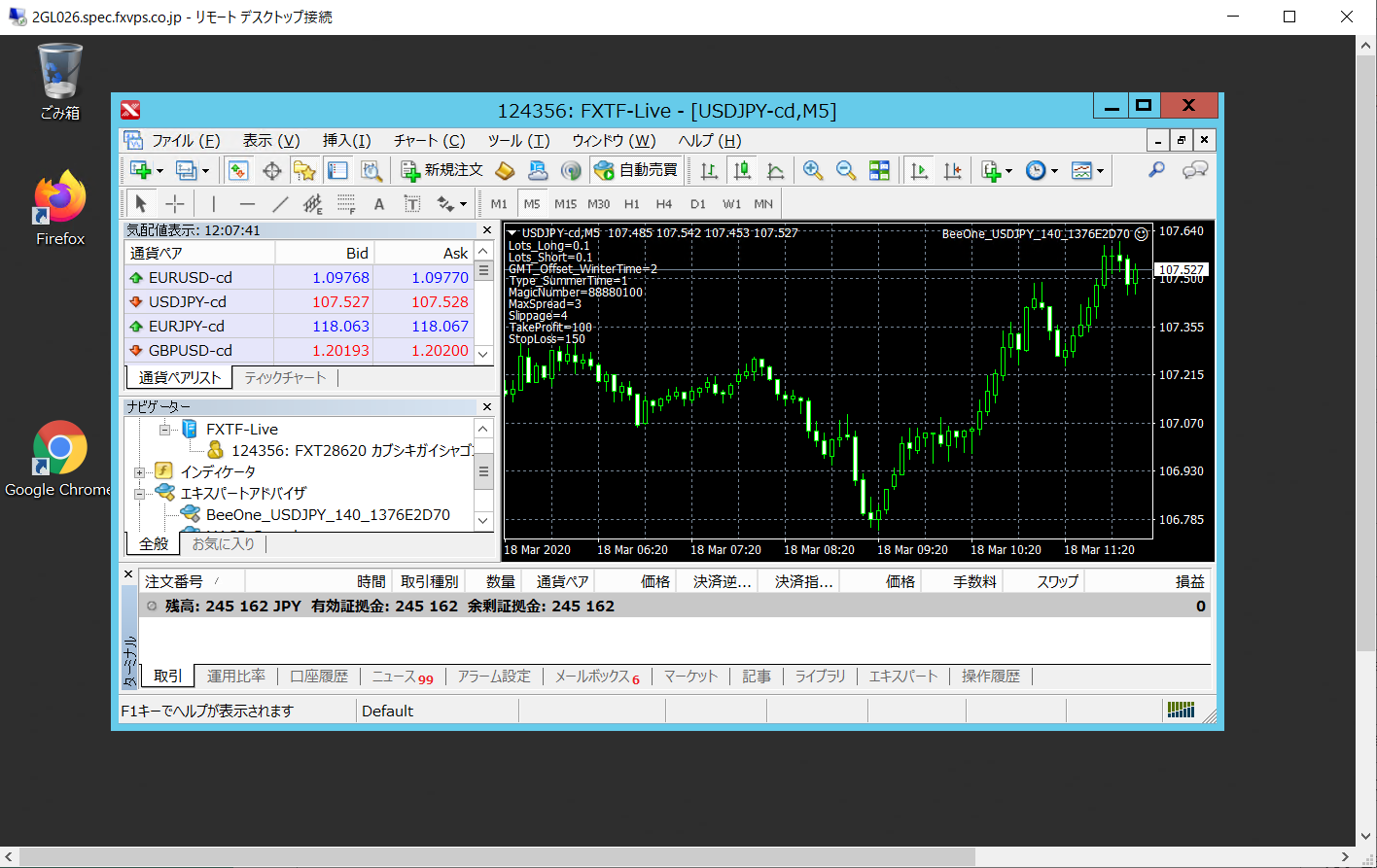
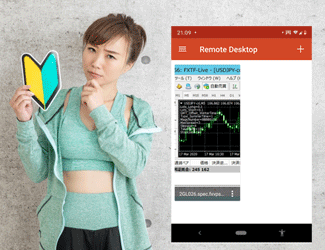
Install the VPS app on your smartphone. I am using an Android smartphone, so I installed Microsoft Remote Desktop from the Android Store.
When you launch the VPS app, a screen like the one below appears.
Tap to expand.
Smartphone appRemote Desktop
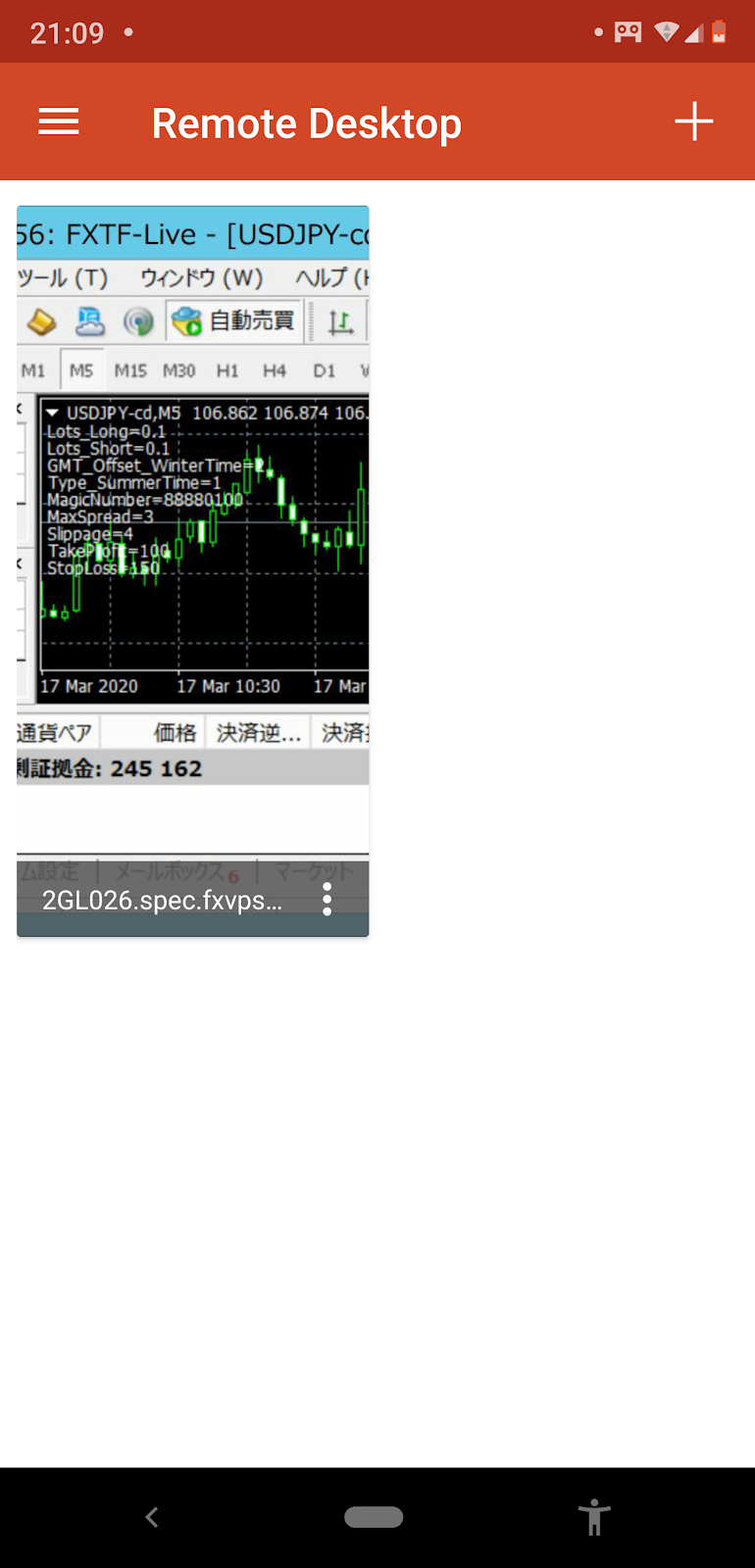
When Remote Desktop is launched, MT4 fills the entire smartphone screen.
The screen is small and the操作 is difficult, but it's not impossible to change things like the account details.
You can manage to enter the MT4 account ID and password.
However, it's better to do this on a PC. It seems wise to treat the smartphone as something to use only for irregular situations.
One convenient operation that can be done on the smartphone is, for example, when there is likely price movement after an economic indicator release and you want to stop the EA, quickly turning auto trading off.
In such cases, as shown in the following image, simply double-tapping the auto-trading button with the focus on it switches from green Auto-Trading On to red Auto-Trading Off. The usability was quite good.
Initial setup and EA swapping, and restarting the VPS about once a week should be done on a PC, and then you check the status on your smartphone.
Also, when you want to settle/close a position held by the EA, it's good to do it via the MT4 mobile app.
It is much easier and more accurate than using Remote Desktop.
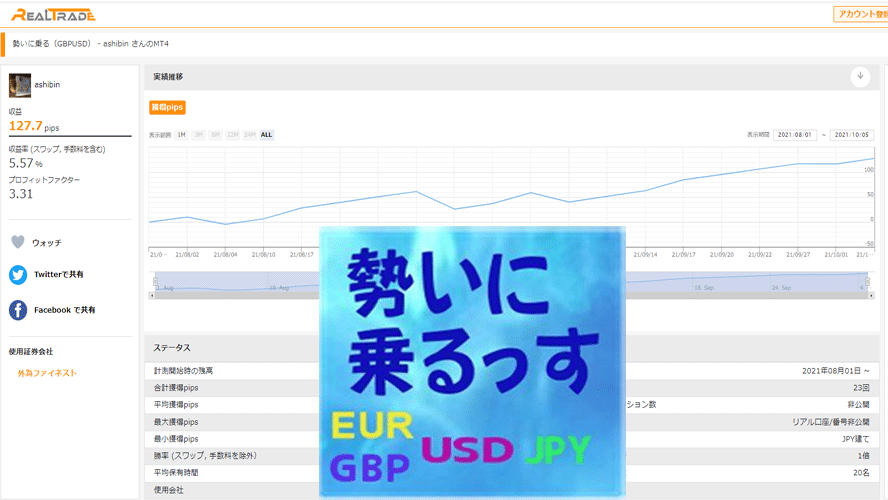
Moreover, on a smartphone you can view current positions as well as perform historical analyses, and if you want to publish your trading results to third parties, using REAL-TRADE is beneficial.
Various analytical indicators are also available.
And in this way, I have written down my impressions of using a VPS on a smartphone; you may find it surprisingly easy.
The VPS used this time was from Best-One. It’s 888 yen per month (tax included), which is cheap, but I think it’s sufficient.
VPS providers like Onamae.com are said to be the most widely used in this field.
Written by Hayakawa