

[Introduction] Troubleshooting when an EA does not run in MT4 — steps to check permissions, account status, and logs
0
Hello, this is the captain of the lab.
This time, I’m sharing what the captain stumbled over when first using MT4.
When you try a new tool, there are often things you don’t quite understand.
Even after researching, you may still find it unclear, causing a bit of frustration.
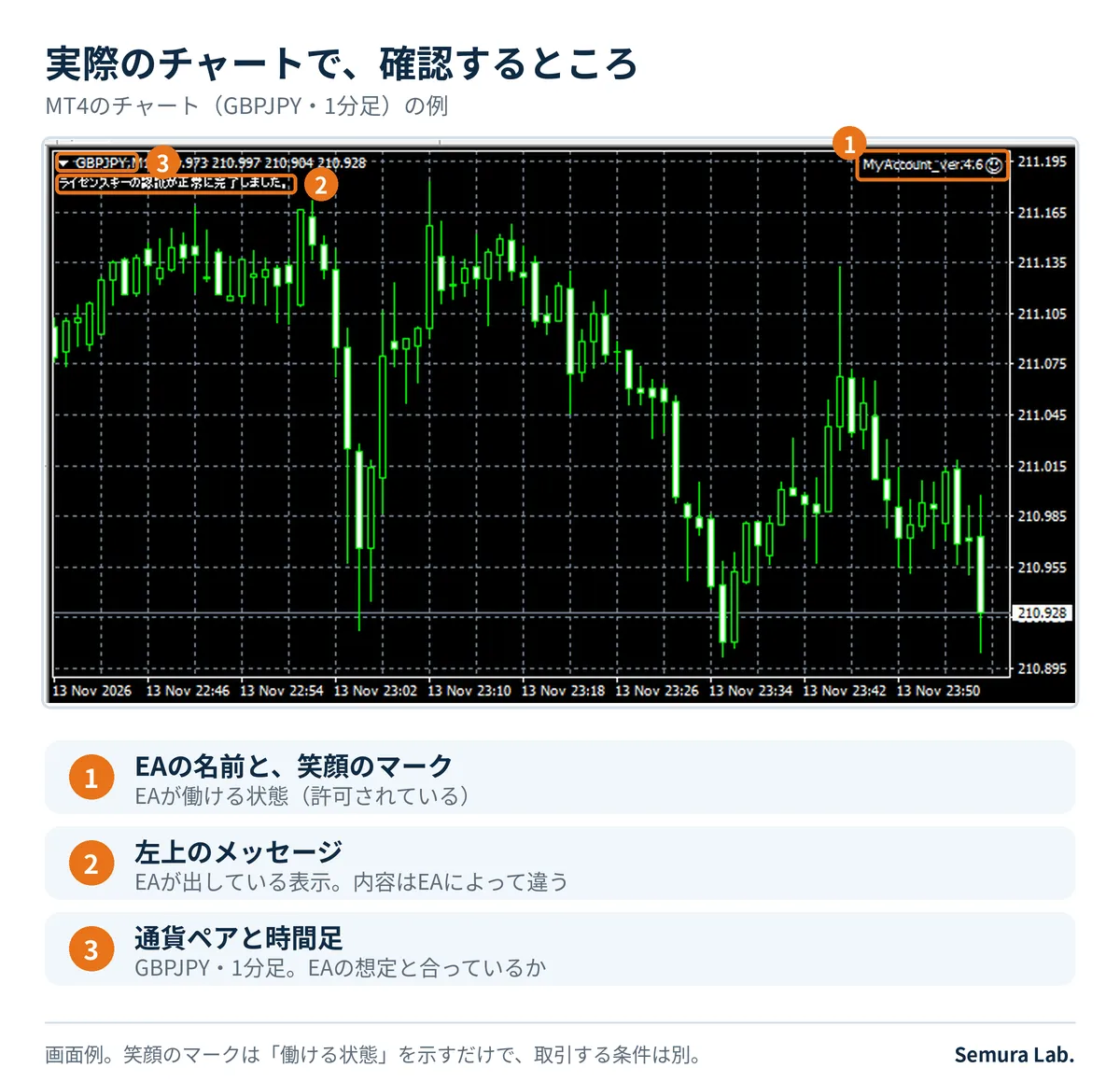
【対象と前提】
For real trading charts, organize the verification procedure for when the EA does not start trading.
Backtesting settings are outside the scope.
Menu names may differ depending on MT4 version and broker.
This is a general整理 and does not guarantee operation for specific EAs or brokers.
■1. Separation: stop or standby
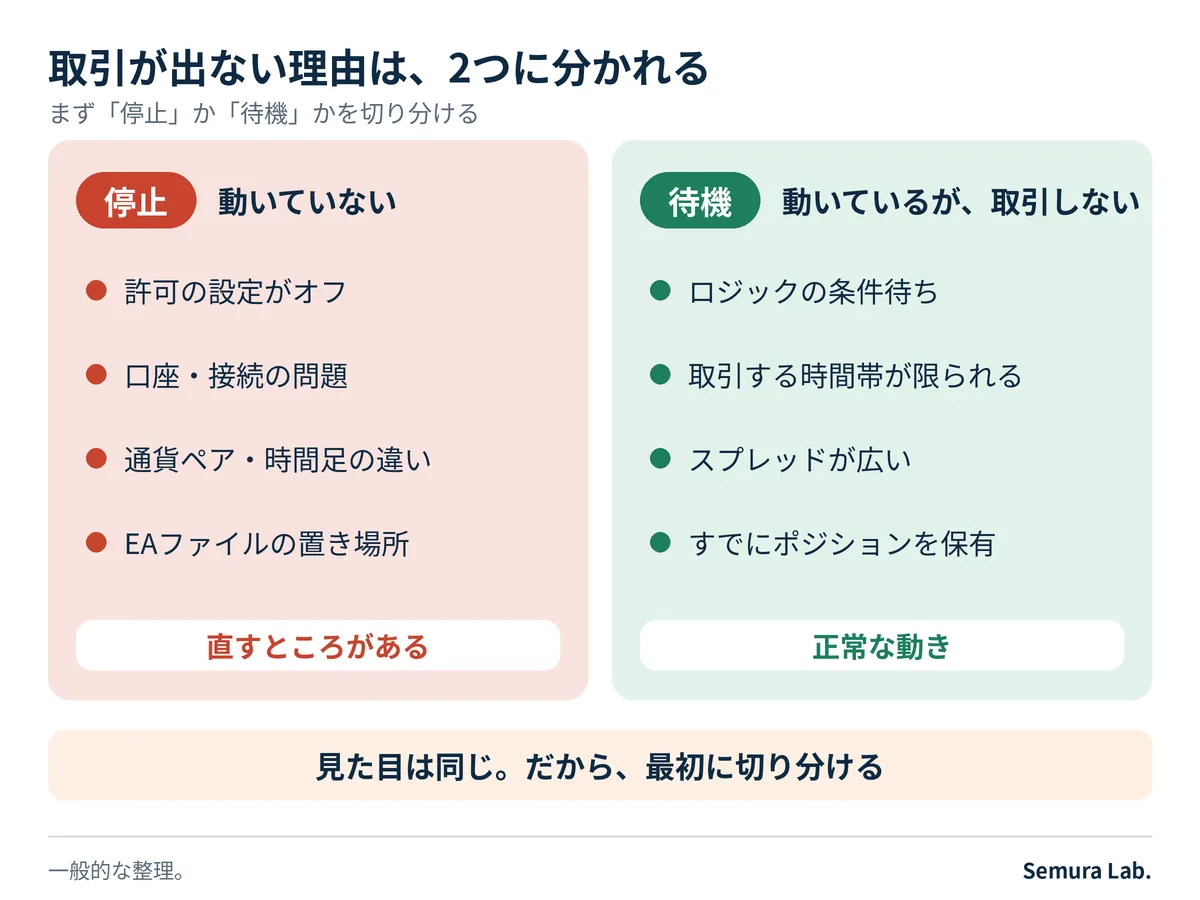
The reason an EA does not trade can be divided into two categories.
(A) A stop condition where, due to permissions or account status, the EA cannot operate.
(B) It is running, but it will not trade until conditions are met—standby.
B is normal.
Depending on the logic, it is not uncommon for no trades to occur for several days.
First, determine whether it is A or B. There are three indicators: whether the display in the upper right of the chart is showing; whether there are errors in the log; whether there was actually a good trading opportunity.
 【Image:fig71_two_states.png】
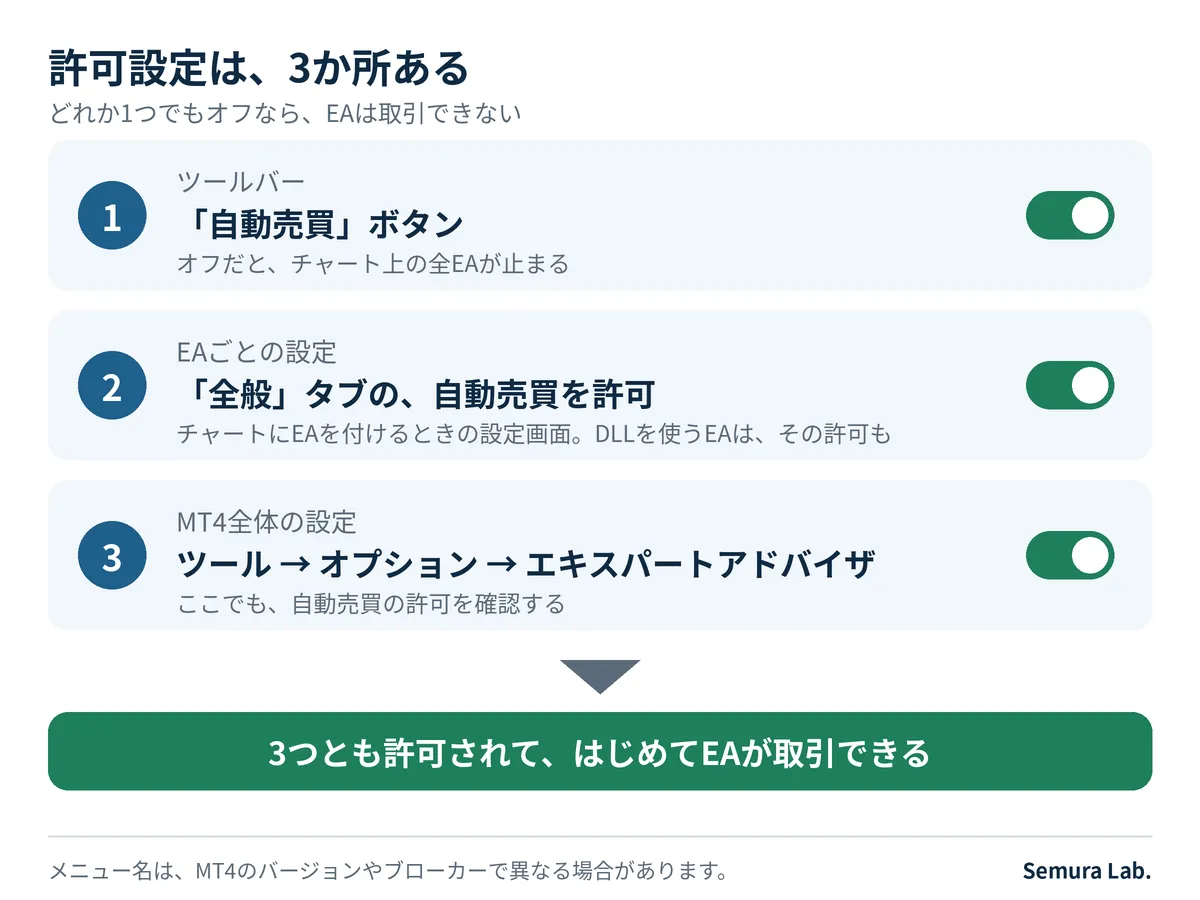
■2. There are 3 places for permissions
(1) The toolbar "AutoTrading" button. If off, all EAs on the chart stop. The button’s appearance differs by version, so compare the pressed vs. unpressed states.
(2) When adding an EA to a chart, in the settings screen, on the "Common" tab, check "Allow live trading." You can reopen the settings by right-clicking the chart and selecting "Expert Advisor." If the EA uses an external program (DLL), also verify that usage of DLLs is allowed.
(3) From the Tools menu, open the "Expert Advisors" tab in the Options. There is also a permission for automated trading here.
If any one of these three is not allowed, the EA cannot trade.
After changing settings, confirm that the display in the upper right of the chart changes accordingly.
When attaching the EA to a new chart, re-check the EA-specific settings.
 【Image:fig72_three_permissions.png】
■3. Display on the chart
On the upper right of the chart, the EA name and a face mark appear.
If it is able to operate, the smile mark appears.
If there is no name or the mark differs, the EA may not be attached or not permitted.
However, this mark only indicates "operable," not whether it is in wait-for-signal or not meeting conditions.
If the mark is shown but it is not trading, check logs to see if it is standby or an order placement error.
■4. Account and connection
Even when the EA is in a state to operate, it may not trade due to account-related reasons. Points to check are as follows.
・Connection status (bottom right of the screen) is normal
・Logged in with a read-only password
・Not within times when trading is not allowed (weekends, maintenance)
・Computer is not in sleep or network disconnected
・Minimum lot size or margin requirements are met (cannot place orders otherwise)
If you switch from a demo to a real account, trading conditions may differ. If you need continuous operation, using a VPS is an option.
■5. Currency pair, time frame, symbol name
Many EAs are built to operate only on expected currency pairs and time frames.
Consult the manual for the supported conditions first.
If the time frame differs, even for the same currency pair, the results of the judgments can change.
Also, some brokers append characters to the currency pair names (e.g., USDJPY plus a suffix).
If the EA refers to a specific name only, this can be the cause.
■6. Check the logs
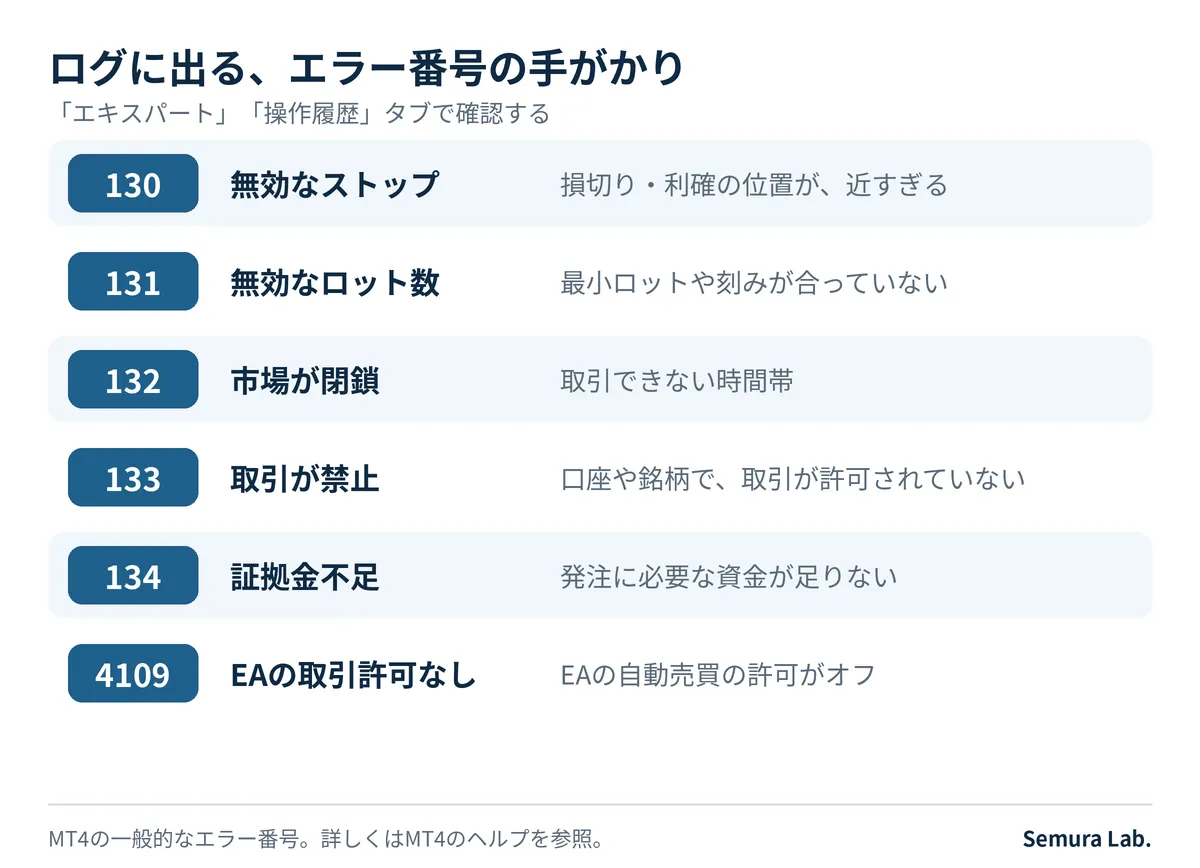
In the Terminal (bottom of the screen), the "Experts" and "Journal" tabs record the EA’s activity and errors.
Look around the time you expected it to run.
If there are no errors, it is likely a permission or standby issue.
Error numbers can provide clues to the cause.
The meaning of the numbers is listed in MT4 Help.
If the same error occurs repeatedly, the same cause may be recurring.
 【Image:fig73_error_codes.png】
■7. File placement and updates
After replacing or updating an EA, verify that its location is correct.
In the MT4 data folder there is a place to put EAs.
EA files include the executable ex4 and the source mq4.
Commercially sold EAs are often only ex4.
After installation, you may need to update the Navigator or restart MT4 to see it in the list.
Do the above seven checks in order from the top. The order is arranged to minimize effort. By eliminating one cause at a time, the remaining one becomes a strong candidate.
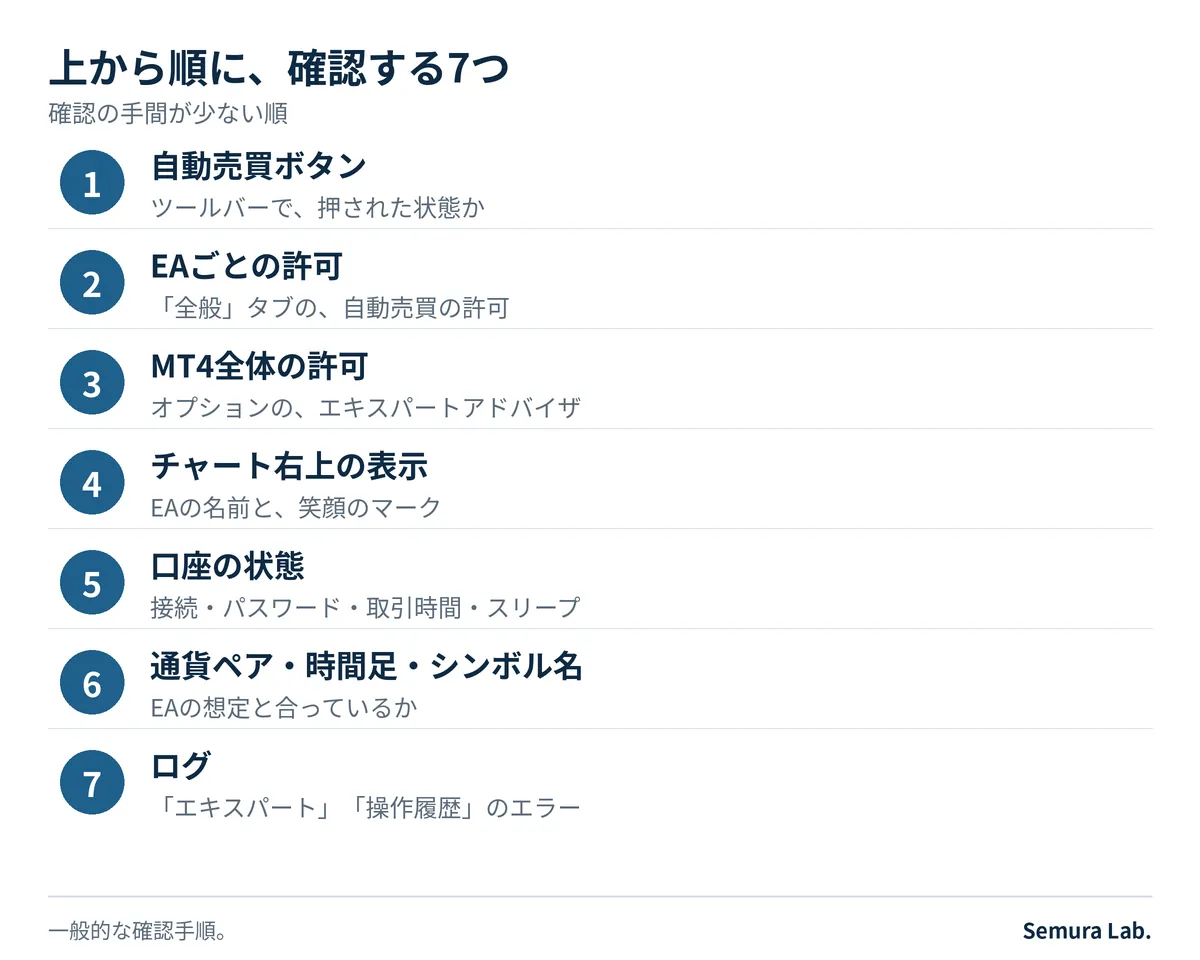 【Image:fig74_check_order.png】
■8. Example of normal standby
Even when all checks indicate no problems, trading may not occur. The following cases are normal behavior.
・The logical conditions have not yet been satisfied
・Trading days or times are limited
・Spread widens and trades are being avoided
・Already holding the maximum number of positions
・Market is closed
・EA settings avoid times of key economic releases
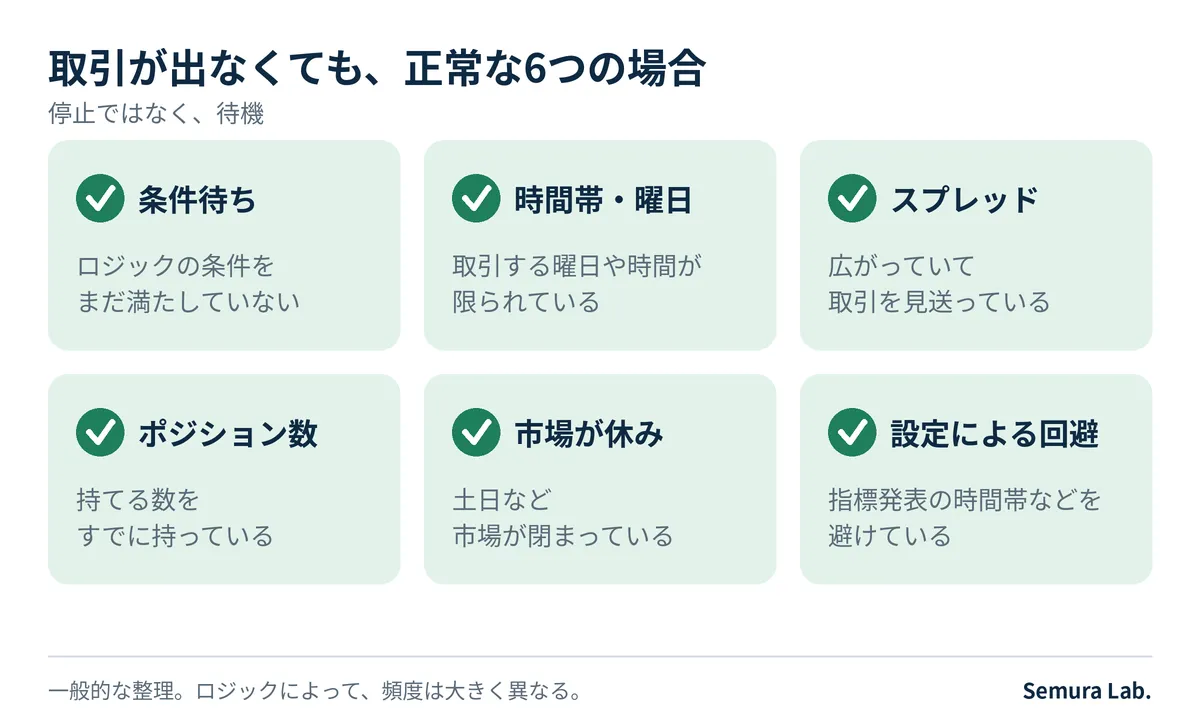 【Image:fig75_waiting_reasons.png】
Trading frequency can be roughly inferred from the EA’s description and backtest trading counts.
Stop and standby look the same in appearance.
Therefore, checking permission settings first helps avoid confusion later.
■9. Information to provide when consulting
If the cause is not clear, prepare the display on the chart’s upper right, the log in the "Experts" tab, and the EA settings screen three items.
These three can be screenshots of the screen.
Be careful not to include account numbers or other sensitive items.
With these three items, it becomes easier to narrow down the cause.
Also tell us the EA name, account type (demo or real), broker, and when it stopped operating.
We at Semura Lab. base our guidance on presenting numbers and steps with conditions and limits. If you have questions about EA operation, feel free to reach out at our general consultation desk.
× ![]()