
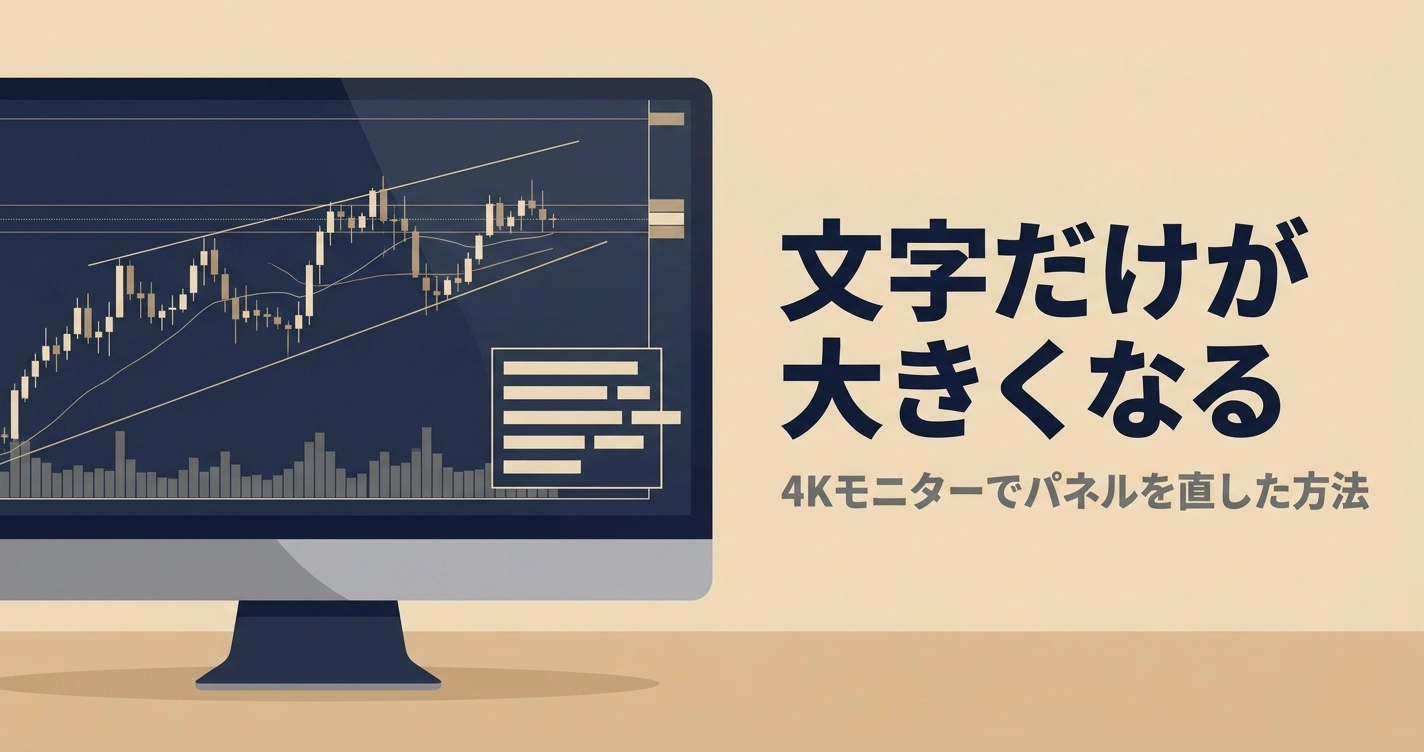
On a 4K monitor, only the text gets larger — How I fixed the MT4 indicator panel with two magnifications
33 characters How many characters fit in 320px width at 150% (50 at 100%) | Two different scaling targets for multiplication | 18,144 combinations combinations comparing rounding differences |
I am lab.aiueo, creating MT4/MT5 indicators and selling them on GogoJungle.
In August, a user who bought the RM-LOT risk management indicator reported an issue. With a 27-inch 4K monitor, when Windows display scaling is set to 150%, the panel would break apart.
The text only becomes larger and overflows beyond the panel frame. The frame size and position remained unchanged. That was the kind of distortion.
This prompted a comprehensive review of all products that include a panel. The details are in the September sales article, so today I’ll describe the fix.
Why does only the text become larger
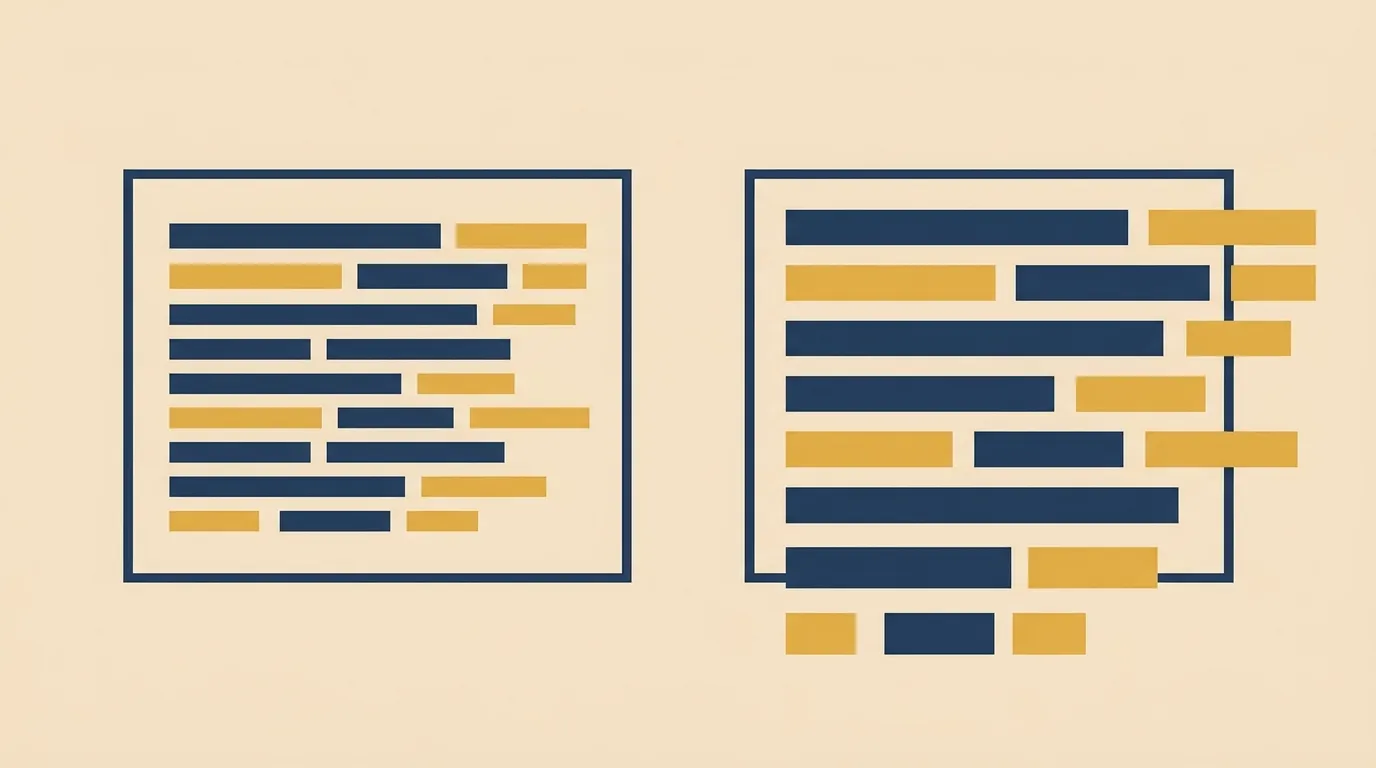
In MT4, when the display scale is increased, the components placed on the chart enlarge only the “text” to match actual resolution.
However, the position of components and the size of the background rectangles (specified in pixels) do not enlarge.
As a result, you get this.
- Display scale 100% (96dpi): 50 characters fit in a 320-pixel-wide panel
- Display scale 150% (144dpi): only 33 characters fit in the same width
- The longest line in RM-LOT exceeds the width at 150% (45 characters)
Fix: split the scale into two
The core idea is to separate scales into two and apply the multipliers to different targets.
- Screen scale: apply to resolution ÷ 96, only to position and size; do not apply to text since MT4 already scales text
- Display scale: user setting to size the panel (100–250%) applied to both text and position/size
If you mix these, text gets double-scaled. The RM-LOT code is written like this.
// Decide panel enlargement. Two scales, applied to different targets
void UpdateUiScale()
{
   // ① User-selected display scale. Enlarges both text and frame
   double f = (double)Panel_Scale / 100.0;
   if(f < 0.5) f = 0.5;
   if(f > 4.0) f = 4.0;
   g_fontScale = f;

   // ② High-DPI monitor correction. MT4 enlarges only the text to match actual DPI,
   //    but does not scale object pixel coordinates
   double d = 1.0;
   int    dpi = (int)TerminalInfoInteger(TERMINAL_SCREEN_DPI);
   if(dpi >= 96) d = dpi / 96.0;
   if(d > 4.0)   d = 4.0;
   g_dpiScale = d;

   // Determine the scale for coordinates here
   g_pxScale = PF((Panel_FontSize > 0) ? Panel_FontSize : 9) / 9.0 * g_dpiScale;
}

// Font size inside the panel. DPI scaling is done by MT4, so do not apply here
int PF(int pt)
{
   int v = (int)MathRound(pt * g_fontScale);
   if(v < 1) v = 1;
   return v;
}

// All pixel values inside the panel go through PX()
int PX(double base)
{
   int v = (int)MathRound(base * g_pxScale);
   if(base > 0.0 && v < 1) v = 1;
   return v;
}
Every pixel within the panel now passes through PX(). If even a single raw number remains, it will fail to catch up with the scaling and cause misalignment.
Reading the resolution with TerminalInfoInteger(TERMINAL_SCREEN_DPI) also compiles and runs in MQL4.
Three decisions
1. Do not change the previous appearance at all
Set the baseline to “text size 9, display scale 100%, display multiplier 100%” so that the display looks exactly the same as before. Users’ current screens will notice no change.
2. Do not provide an “Auto” option
Screen scale is always effective automatically. The setting only affects visible size (100/125/150/175/200/250%). The screen correction is always on; you only choose the size. That clarifies the meaning of the setting.
3. Lock calculations to one place
Initially, I built up the multiplier inside PX() each time. The compiler expanded that calculation to about 60 call sites, bloating ex4 files from 105KB to 169KB.
By consolidating the scale into one variable and leaving PX() to only perform multiplication and rounding, it went back to 126KB. Since the order of calculations changed, I compared all 18,144 possible rounding outcomes. In the default settings there was no difference; within actual usage, only 10 cases produced a 1-pixel difference.
Text width measured by actual font size
A single glance on the screen would miss overflow. In GD-Deck, two optional lines were not shown by default and overflowed the frame right before listing.
Now, before rendering, I measure the actual font width.
- Convert MT4 font size (points) to pixels: points × 96 ÷ 72
- Do not measure in bold. Bold yields wider widths and misjudges
- Consider all possible longer cases: when currencies align, the currency notation of the account (e.g., “10,000 JPY” is about 33 pixels longer than “1.0%”), when numbers are two digits, broker suffixes for instrument names
- Add about 30 pixels of slack so it fits even if the user changes the font
Color too is verified numerically. The supplementary GD-Deck text had only 2.57:1 contrast against the background. Readability guidelines suggest 4.5:1. Now I divide into three tiers: main text 14:1, supplements 7:1, and bottom line 4.5:1.
Each product has slightly different fixes
- PI-ALT: with certain scales, the label disappeared under the input field. The cause was rounding frame height and line spacing separately. I render the frame as an integer multiple of line spacing, so it lines up at any scale
- PI-ALT: once the label was visible, I found that “Downside Pips:” overflowed to the right. It was hidden before and unseen. I measured the actual width of the drawn element and widened the horizontal spacing if needed
- SMC-Compass: the radar board is an image; MT4 cannot enlarge images. I prepared three image sizes at 100%, 150%, and 200% and switch among them
- SMC-Radar: there was no fixed panel on screen, only lines and rectangles drawn on the chart, so no fix was necessary
Process
Ultimately, I rebuilt 14 code files, rewrote 11 manuals, 8 product descriptions, and 3 distribution files. The GoGoJungle version release took about a week after the report.
At one point I almost released a version with the wrong base files, which would have erased existing features. I noticed it before release and implemented a pre-release verification system. That story is in a previous article.
What I commit to as a creator
- Create products with two scales from the start
- All panel pixel values pass through a single function
- Decide on a standard to maintain current appearance before making changes
- Measure character width with actual fonts and color using contrast before rendering
RM-LOT
This was the product where I first received reports. In addition to lot calculations, the panel shows margin maintenance and the price at which liquidation occurs before placing orders.
RM-LOT (MT4) | View sales page |
This article is my personal development record. The code snippets shown are extracts to illustrate ideas and do not guarantee operation. The indicators introduced here are tools to assist market analysis and do not guarantee profits. Investment decisions are your responsibility.
Thank you for reading to the end.