

300 sold KGS finally turns into EA. Sale starts next week [Exclusive for KGS Indicator purchasers]
KURAMA GOLD SIGNAL PRO (くらまゴールドシグナルプロ) has reached 300 units sold. Thank you to everyone who has been using it.
And here is the next development.
We plan to start selling the EA "KGS AUTO STUDIO" that links KGS signals to automatic orders next week. On GoGoJungle, sales are limited to KGS indicator (KURAMA GOLD SIGNAL PRO) purchasers.
Find a signal, open the order screen, input the lot size, take-profit, and stop-loss. We have been developing and testing for those who want to delegate even this task.
What I want to convey this time is not only automation. It is also about where you can adjust yourself, such as "which signal to use" and "under what conditions to skip."
From viewing signals to placing orders, automation.
Until now, KGS was an indicator that checked gold signals and reference prices for take-profit and stop-loss and allowed you to place orders manually.
In the EA version, you receive new signals that meet your configured conditions, confirm the order price and trading terms at the time of ordering, and then connect to automatic ordering.
This EA is for those who want to reduce the manual burden of noticing and inputting orders.
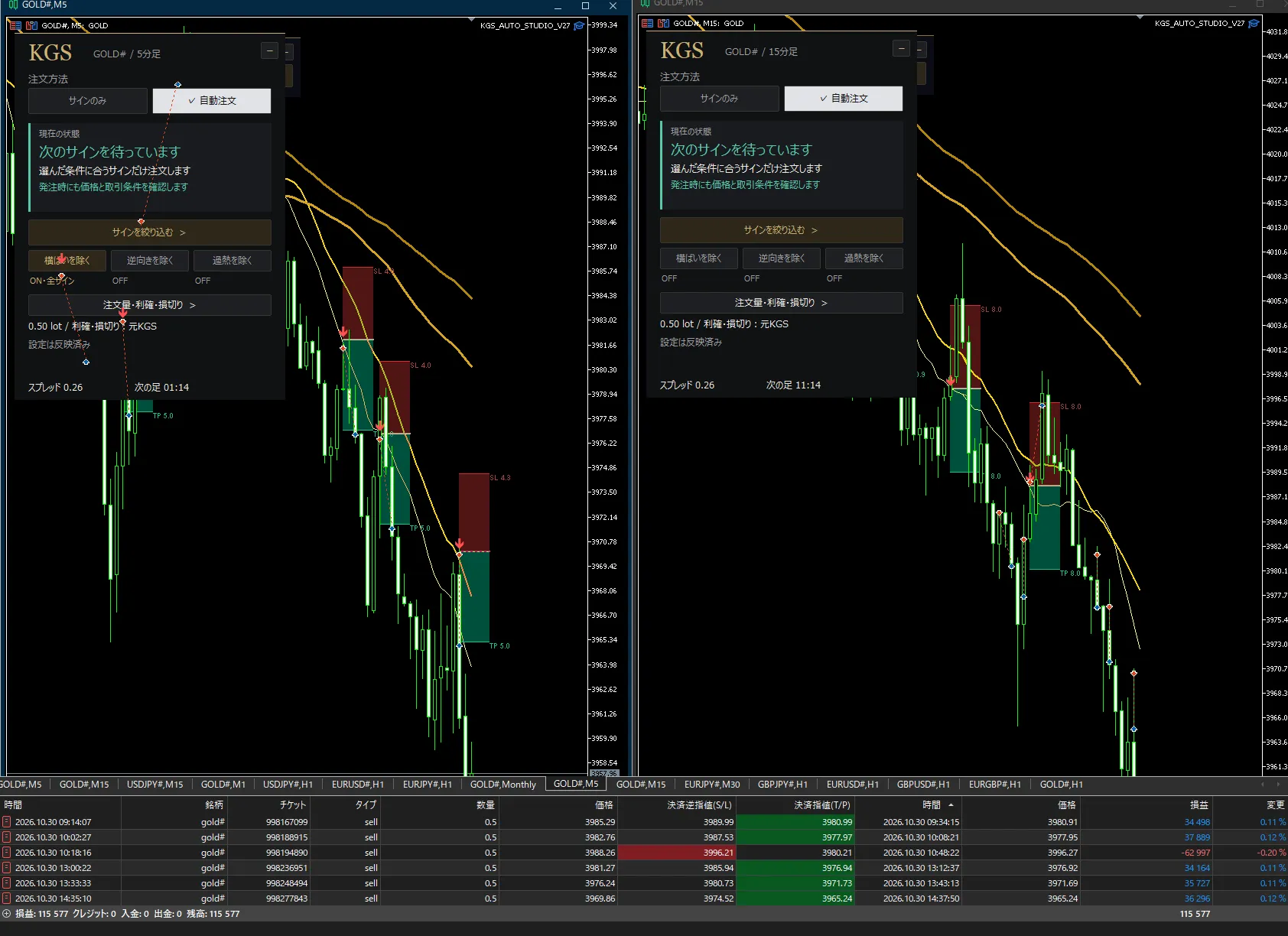
Above is the MT5 demo running screen under development. The left is the 5-minute chart, the right is the 15-minute chart. We have placed panels on each and are checking settings and operational status separately. The history in the screen is from some demo trades and does not represent performance of the entire operation or real account earnings.
First "signals only." Then "automatic orders" as you get used to it.
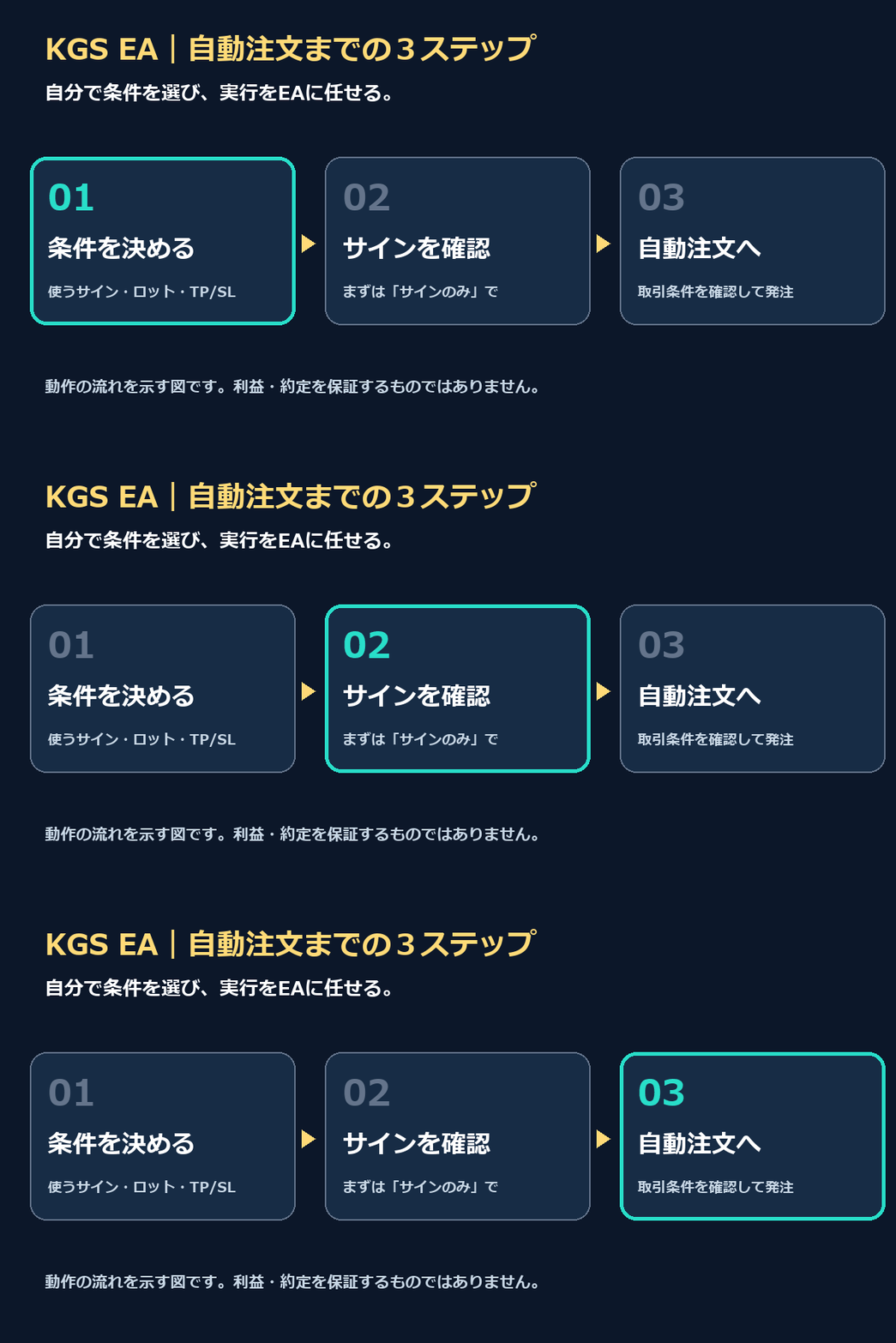
There is no need to start with automated trading from the beginning. The panel can switch between "signals only" and "automatic orders."
With signals only, you judge yourself while watching arrows and reference TP/SL. With automatic orders, the EA places orders according to the reflected conditions.
First check displays and settings, and only proceed to automatic ordering when you are satisfied. The same screen allows you to progress in stages.
The panel also shows the current state. You can check on the screen whether it is waiting for the next signal or stopped for reasons such as trade permission.
Pre-set the scenarios you want to avoid.
You can use the KGS signals as they are, or filter them with additional conditions.
- Exclude flat: skip when the selected MA moves little.
- Exclude opposite direction: skip signals that go in the opposite direction of the chosen MA.
- Exclude overbought: narrow signals using configured RSI conditions, etc.
Conditions can be turned ON/OFF. You can apply them to all signals at once or set them separately for each type of signal.
Rather than manually deciding each time, you can encode "I wouldn’t enter in this situation" into settings. This is a major feature of the EA version.
However, increasing conditions does not guarantee a higher win rate or profits. Excluding flat is not a universal tool to identify all range markets. Please first test with a demo to decide what to keep and what to skip.
Lot size, take-profit and stop-loss. Decide your operating conditions yourself.
You can change order quantity, take-profit, and stop-loss settings from the panel. In addition to using KGS standard TP/SL, there are settings that allow fixed-width orders and other parameters.
You can also set limits on holdings, daily loss limits, spreads, and time periods. This is so you can decide the risk you are willing to take based on your funds and operating hours.
Before automating, decide which conditions move the system and where to stop. I want you to give this preparation as much importance in the EA version as well.
Note that the preset loss limits and TP/SL do not guarantee that you will stop exactly at those amounts or prices due to sudden price changes or slippage.
Five-minute and fifteen-minute charts, used in their own ways.
The development version introduced here targets the Gold 5-minute and 15-minute charts on Windows MT5. The current verification environment is XMTrading GOLD#.
The 5-minute and 15-minute charts are placed on separate charts and managed separately, allowing you to check conditions on the time frame you want to use.
Because KGS logic is built-in, this EA version does not require placing the original indicator on a separate chart.
For MT4 versions or other vendors, please consult the official release notice. While running, you will need a PC or VPS and a stable network connection to run MT5.
We are conducting final checks ahead of next week's release.
Currently, in addition to the demo run, we are verifying setting reflection, signal selection, and order and settlement operations.
The release is scheduled for next week. It will be sold exclusively to KGS indicator purchasers on GoGoJungle. The price, official release date, and purchase procedure will be announced at release. The schedule may change depending on the final confirmation status.
This EA is a separate product sold exclusively to KGS indicator purchasers. Those who have purchased the KGS indicator can optionally purchase the EA as an add-on. The indicator purchase does not automatically include the EA.
If you are already using KGS and want to automate up to placing orders, or if you want to filter signals and use your own conditions, please be sure to check out this EA version.
Take KGS you purchased (300 units) to the next use. At release, we will clearly explain actual operation and how to purchase.
For those who do not yet have the KGS indicator
The GoGoJungle EA purchase target is purchasers of the KGS indicator. If you do not yet own it, please check the contents of KURAMA GOLD SIGNAL PRO on the product card below. This is the main product page for the indicator itself. The EA is sold separately, and the purchase method will be announced at release.
 Existing Indicator Version KURAMA GOLD SIGNAL PRO
Check how signals and TP/SL are displayed and used →
Note: Automatic orders do not guarantee profits. Losses may occur. The displayed screens and specifications are under development and may change in the official version.