
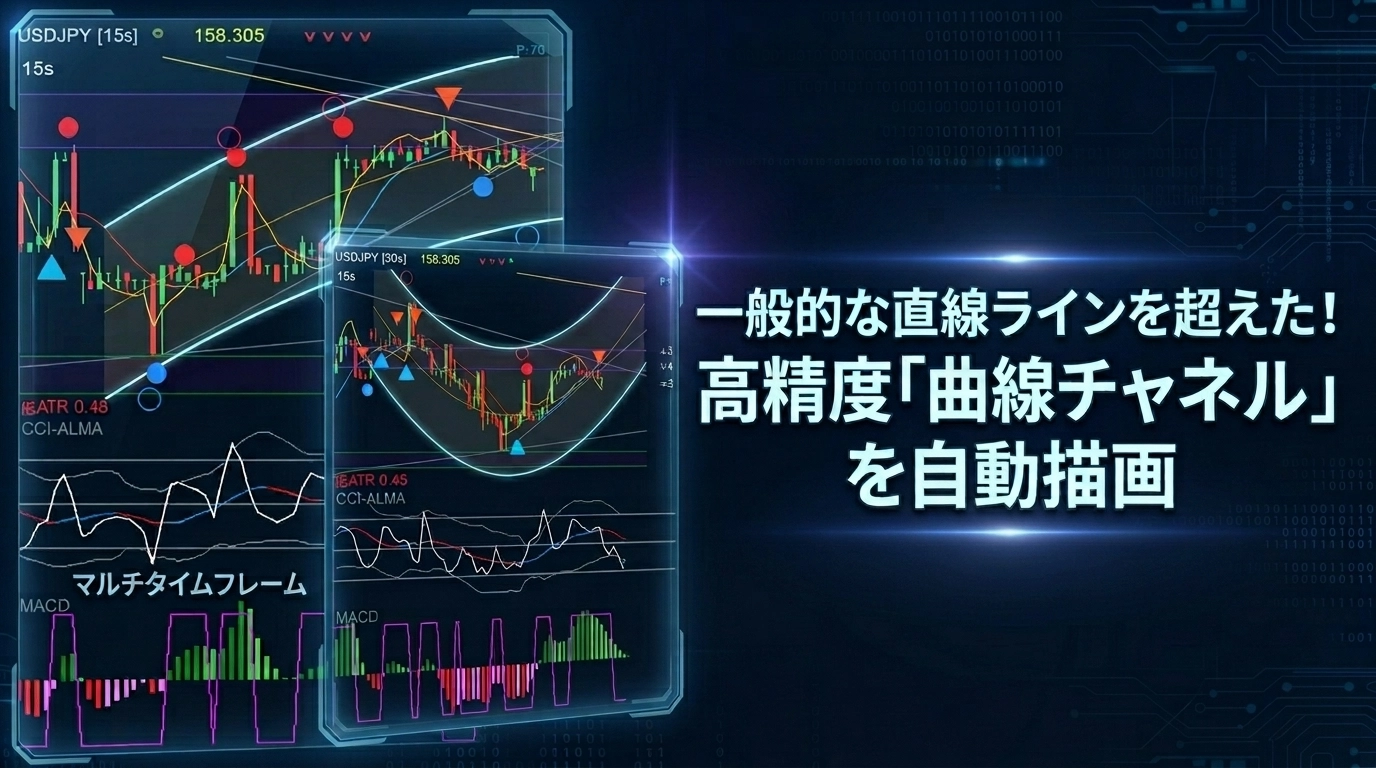
Automatically draw a curve that matches the chart movement!
?Four-point arc / parallel band — create a “meaningful belt” with four clicks
On the chartjust click four pointsto automatically generate curved belts and parallel belts.
Not “draw a line,”but a tool to “draw a story.”


Two modes differ in the starting point, but basically share the same concept of lines.
・Mode that calculates a curve from four points: high-low-high-low
・Mode that calculates a curve from four points: high-high-high-bandwidth.
◆ High-Low-High-Low Mode
Generates a smooth curve that passes through the chosen four points andexpands an automatic belt. .
An arc that passes through the four points
Automatic generation of upper and lower belts
Inside is semi-transparent fill →Visually represents the “AI-acceptable price zone”

● Real-world usage example
Specify the trend’s turning point with four points,and observe whether prices move along that curve.
If the price enters inside the belt,consider it “returned to range”.
If it pops outside the belt,use as an alert-like outlier
◆ High-High-High-Bandwidth Mode (or Low-Low-Low)
Draw a baseline as the reference,and create two belts shifted parallel at a fixed distance...
Baseline
Upper and lower parallel belts
Semi-transparent zone display →Intuitively grasp the trend’s tolerable range

● Real-world usage example
Fix the tolerable width of an uptrend with parallel belts
If the price touches the belt’s upper edge →strong momentum
If it touches the lower edge →pullback candidate
If the belt is breached →first sign of trend breakdown
◆ High-High-High-Low-Low-Low Width Mode
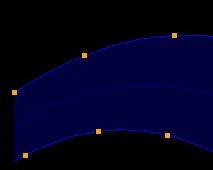
Draw two baseline lines as reference,and treat them as belts....
Two outer lines
Semi-transparent zone display →Use when the spacing for rising and falling differs between high and low
● Real-world usage example
Want to see the upper and lower limits of an uptrend separately
If the price touches the belt’s upper edge →strong momentum
If it touches the lower edge →pullback candidate
If the belt is breached →first sign of trend breakdown
⚡ Automatic Curve Mode Added — a “rescue button” for those who find four-point clicking tedious
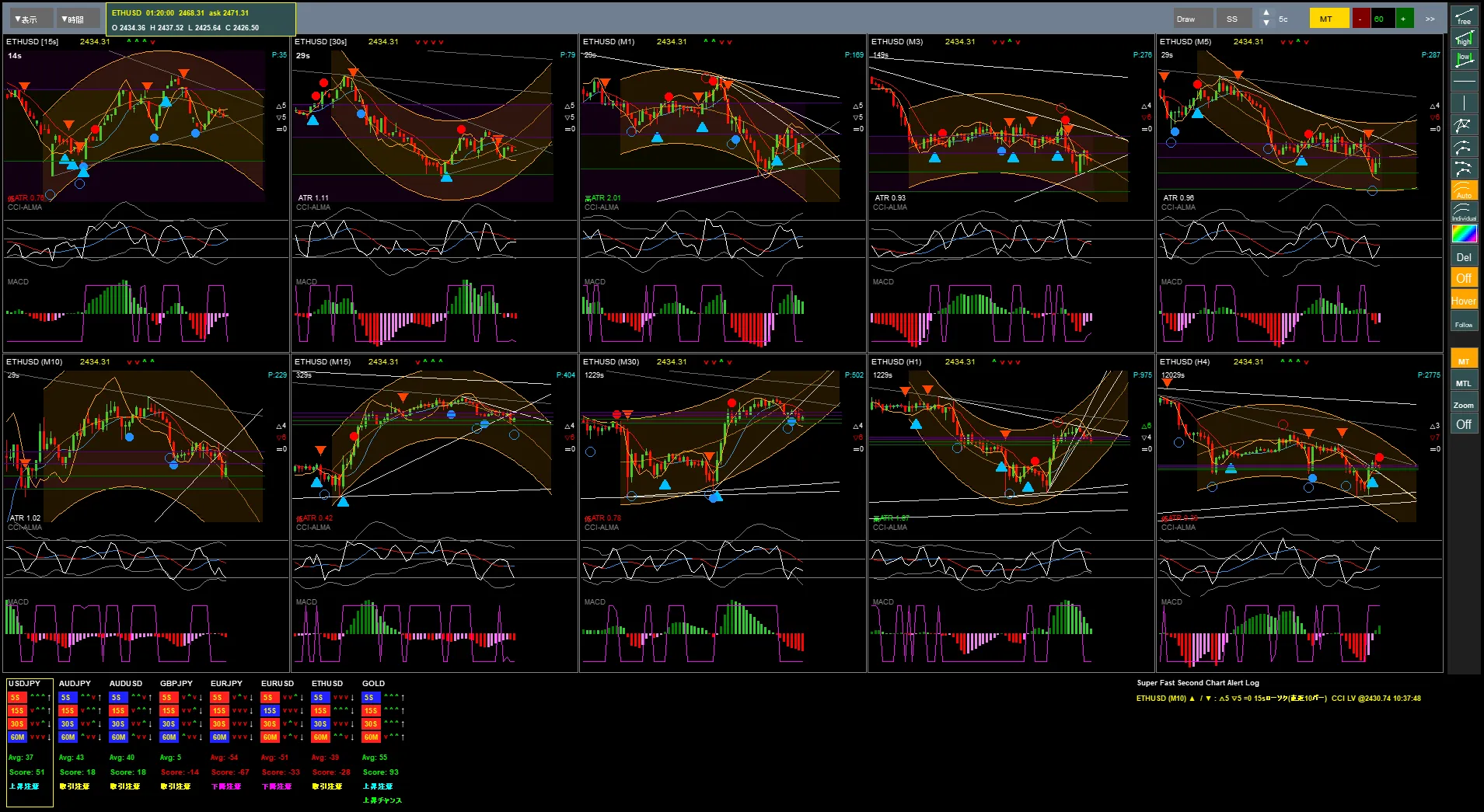
For those who say, “Four-point clicking is tedious,”we’ve prepared an automatic curve mode.
It reads the real-time chart shape and automatically draws the optimal arc/parallel belt for the specified period.
No more “drawing lines.” Now you can directly start with a “zone reading.”
? Yet, accuracy is still best with manual
Of course, if you’re serious about reading, manual four points offers higher accuracy, especially for belt width and related aspects.
When a human judges that “this high price is working” or “this is a pivot,” those four points carry context and intent..
As a result, belts with more storytelling can be created than with automatic generation.
? Diversification is the strongest
If you want precise readings → draw manually
If you want to quickly grasp the big picture in routine flow → turn on automatic curve mode
If you want precise readings → draw manually
If you want to quickly grasp the big picture in routine flow → turn on automatic curve mode
This two-sword approach is the strongest.
Automation is a “crutch for quick overview.” Manual is a precise tool for targeted results.
Since both can be used on the same canvas, switching according to the situation will raise the quality of your analysis.
First, please try fromhere.