

[For FX Beginners] What’s the Difference Between Indicators, Signal Tools, and EAs? A Complete Guide to How to Install and Use Them on MT4 and MT5
When you look at GogoJungle, terms like “high-precision signal indicators,” “automatic trading EA,” and “signal tools” line up side by side.
- “I want to try it, but what’s the difference in the first place?”
- “What are MT4 and MT5?”
- “How should I use them?”
If you feel that way, please read this article.
It may seem difficult, but once you know the steps, anyone can start using them.
In this article, we will explain, in order, the differences among the three types of tools, how to choose between MT4 and MT5, and how to actually install and use them, so that FX beginners won’t get confused.
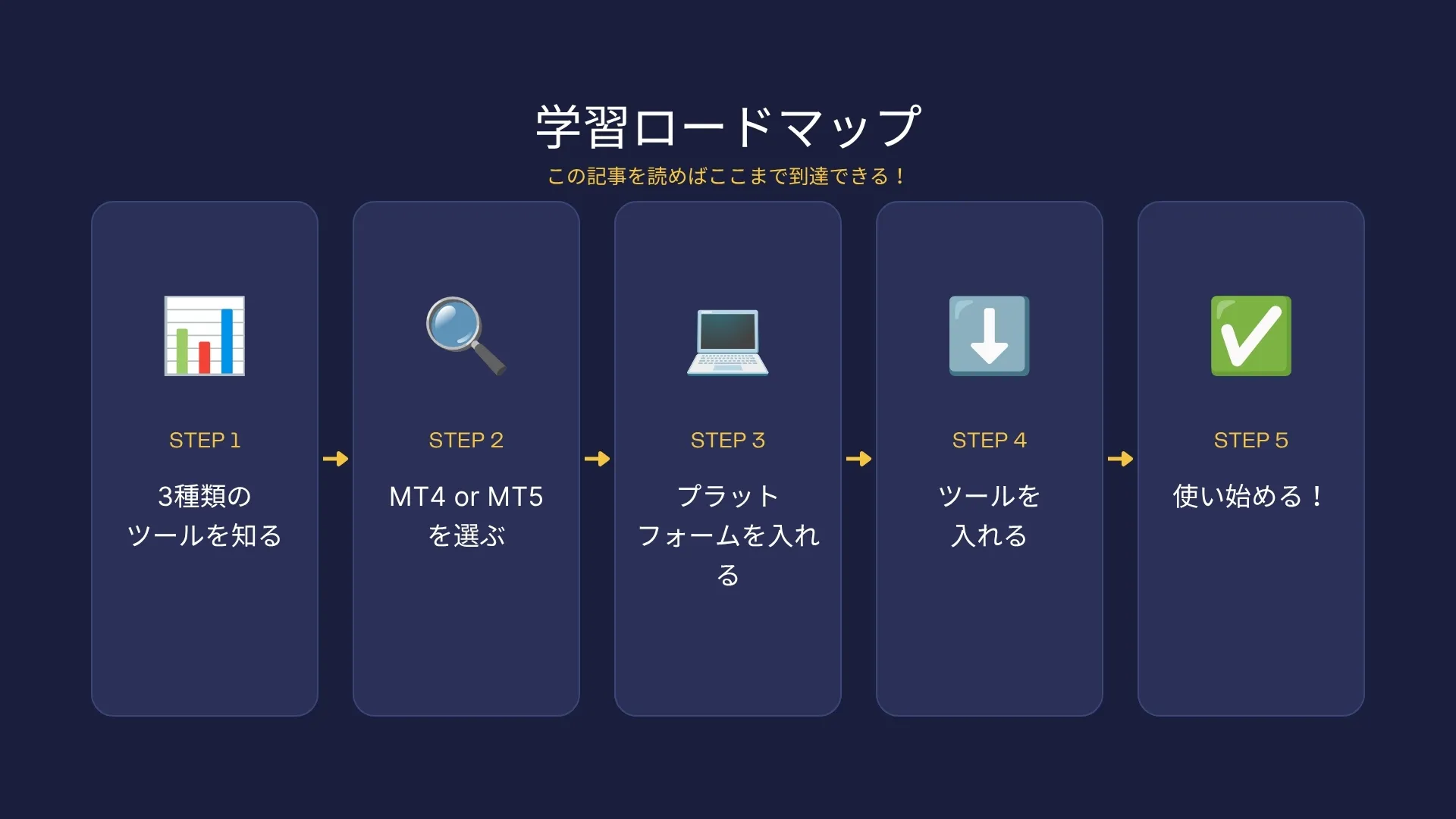
By the time you finish reading this article, you should be ready to start using the tools you’re interested in on GogoJungle from today.
? Table of contents
- CHAPTER 1: First, understand the differences among the three types of tools
- CHAPTER 2: What are MT4 and MT5? Which should you use?
- CHAPTER 3: Install MT4/MT5 on your PC
- CHAPTER 4: How to install and use indicators and signal tools
- CHAPTER 5: How to install and use EAs
- CHAPTER 6: The overall flow from purchasing tools on GogoJungle to starting to use them
- Summary
CHAPTER 1: First, understand the differences among the three types of tools
GogoJungle offers three types of tools: “Indicators,” “Signal tools,” and “EA (automatic trading).”
Their names are similar and may be confusing, but each has a completely different role.
First of all, let’s make sure you understand this properly.
What is an Indicator (Technical Indicator)
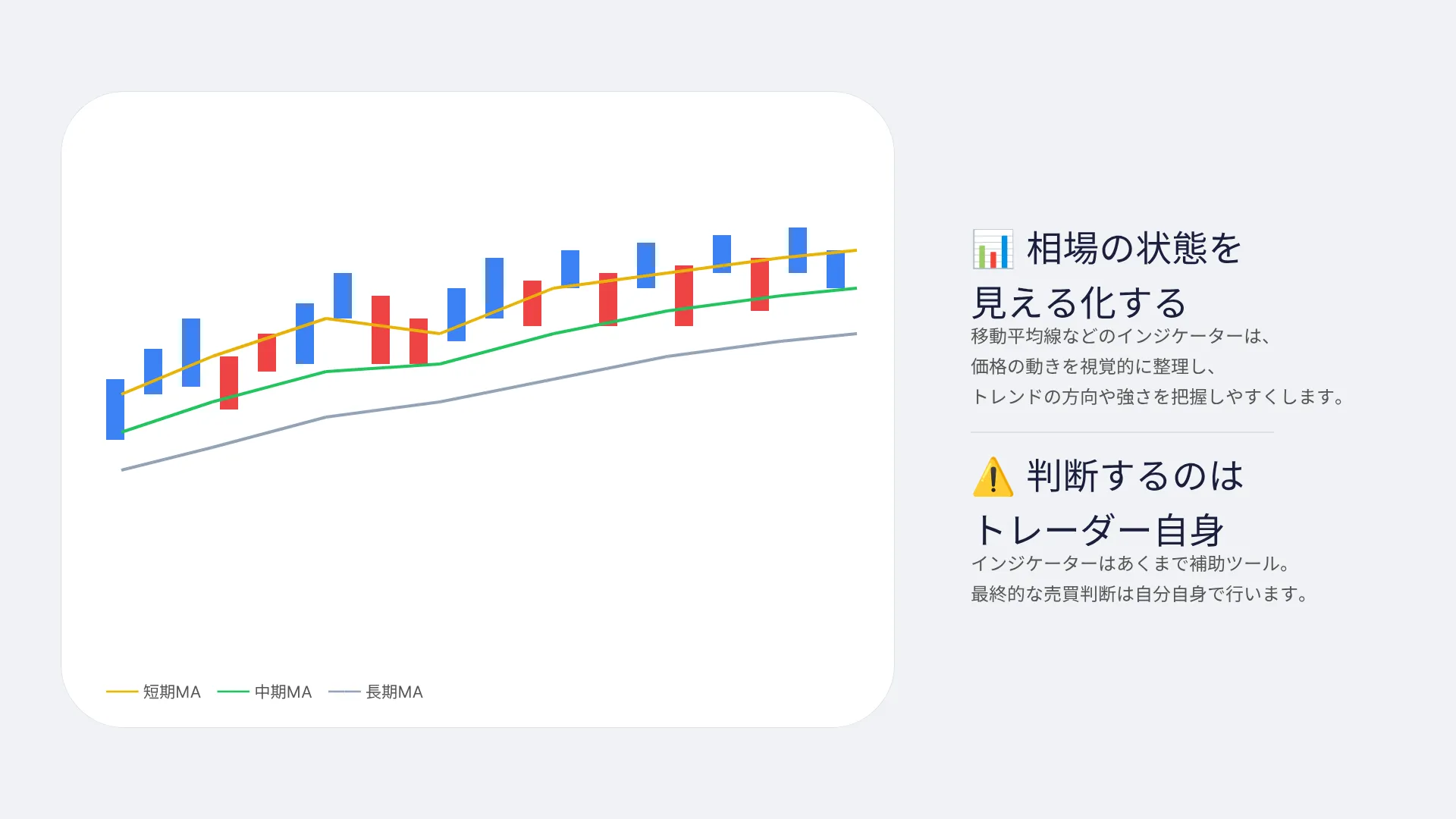
An indicator is a tool for analyzing and visually displaying the market state in an easy-to-understand way.
It overlays lines and graphs on the chart to show “what the current market state is.”
Representative examples include moving averages (MA), MACD, RSI, and Bollinger Bands.
For example, a moving average is a line that connects the average price of the past N candles; whether the price is above or below this line helps infer the trend direction.
The key point is that indicators are tools that show the market state, not instructions to buy or sell.
The trader must make the final decision on whether to enter a trade by looking at the information shown by the indicators.
In terms of flow, indicators provide the “materials for judgment” such as “MACD turning upward may indicate rising momentum, so review the chart for entry.”
What is a Signal Tool (Signal Indicator)
Signal tools are a type of indicator.
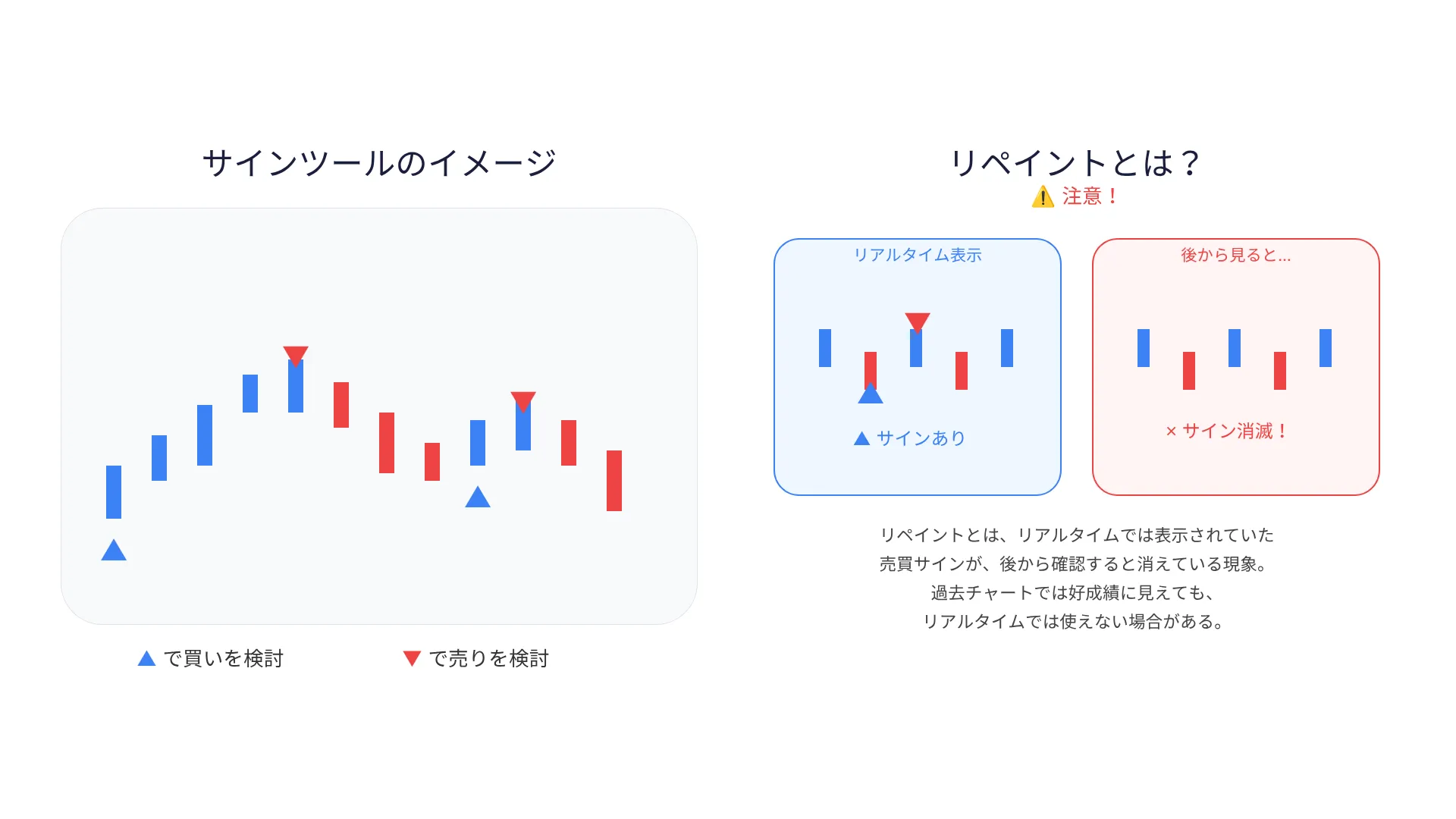
While standard indicators display the market state with lines or graphs, signal tools specialize in clearly showing entry timing with arrows or colors.
For example, signals like “▲ consider buying” or “▼ consider selling” are visually easy to understand. Because you don’t need to analyze the chart continuously—just check when an arrow appears—these tools are beginner-friendly.
However, the final decision is still made by the trader. An arrow appearing does not guarantee the move in that direction. Use the signal as a reference and decide when to enter. They do not place orders automatically.
Before purchase, be sure to check whether the tool is “no repaint.” Repaint means a sign arrow that initially appears may later disappear or move to another location. Tools that repaint can look good on past charts but may be unusable for real-time trading. Check the product page or description for “no repaint.”
EA (Expert Advisor) = Automatic Trading
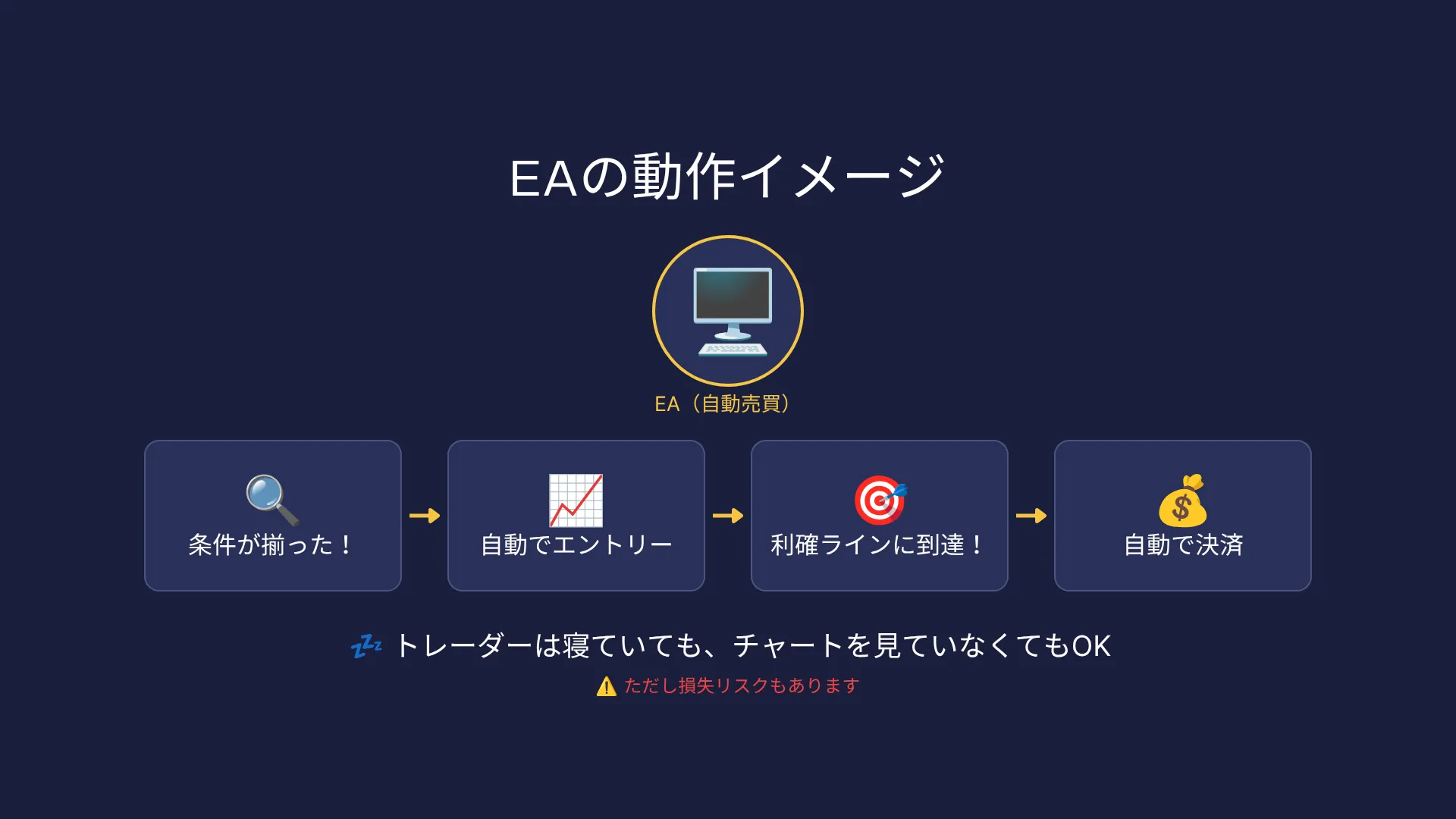
EA is a program that automatically enters and exits trades according to the rules you set.
Even if you aren’t watching the chart, it will automatically enter when conditions are met and exit at your preset take-profit and stop-loss levels.
The idea is that you wake up in the morning and positions are already open, or it trades automatically during work to generate profits.
While an EA is running, it can trade 24 hours a day automatically.
But there are cautions as well.
For an EA to work, the trading platform must be kept running continuously.
If you turn off your computer, the EA stops. Also, no matter how advanced an EA is, it can incur losses depending on market conditions.
An EA is not a magical tool that always earns money; it is a tool that automatically executes the rules. You, the trader, are responsible for setting up the EA and managing funds.
If you want to run an EA 24 hours a day, you can rent a VPS (Virtual Private Server), a cloud-based PC, and run the EA there.
We will explain VPS in more detail in CHAPTER 5.
In one line, the three differences are summarized as
- Indicator: Visualizes market state to help analysis / Manual trading (place orders yourself) / For those who want to analyze charts themselves
- Signal tool: Displays entry timing with arrows, etc. / Manual trading / For those who struggle with analysis and want to reference signals
- EA (automatic trading): Automatically enters and exits according to set rules / Automatic / For those who want to automate and save time
It’s easy to remember: indicators and signal tools are “tools to assist analysis and judgment,” while EAs are “tools that automatically execute trades.”
CHAPTER 2: What are MT4 and MT5? Which should you use?
Regardless of which tool you use—indicator, signal tool, or EA—you need a “trading platform” to run it.
In the FX world, the most commonly used platforms are MT4 and MT5.
This software, called MetaTrader, is freely available through FX brokers.
From chart display to order execution to applying indicators and running EAs, everything needed for FX trading can be done with this single software.
What is MT4 (MetaTrader 4)
MT4 is the world’s most widely used FX trading platform, released in 2005.
With over 20 years of history, a vast number of indicators and EAs have been developed by traders and developers worldwide.
Its hallmark is “simple and fast.”
It runs smoothly on low-spec computers.
The interface is easy to understand, making it relatively quick for beginners to get used to. There are many FX brokers that support MT4, so options are abundant.
However, MT4 is specifically designed for FX (currency pairs) and does not support stocks, commodities, or futures.
Also, compared with MT5, some features are limited.
What is MT5 (MetaTrader 5)
MT5 was released in 2010 as the successor to MT4.
It preserves the ease of use of MT4 while adding many enhancements and features.
Its biggest feature is the wider range of tradable products. In addition to FX, it supports stocks, CFDs, commodities, futures, cryptocurrencies, and more.
It also offers more timeframes and has greatly improved backtesting accuracy for EAs.
In recent years, more brokers have started offering MT5, and new indicators and EAs are increasingly MT5-focused.
GogoJungle is also increasing the number of MT5-only tools.
Main differences between MT4 and MT5
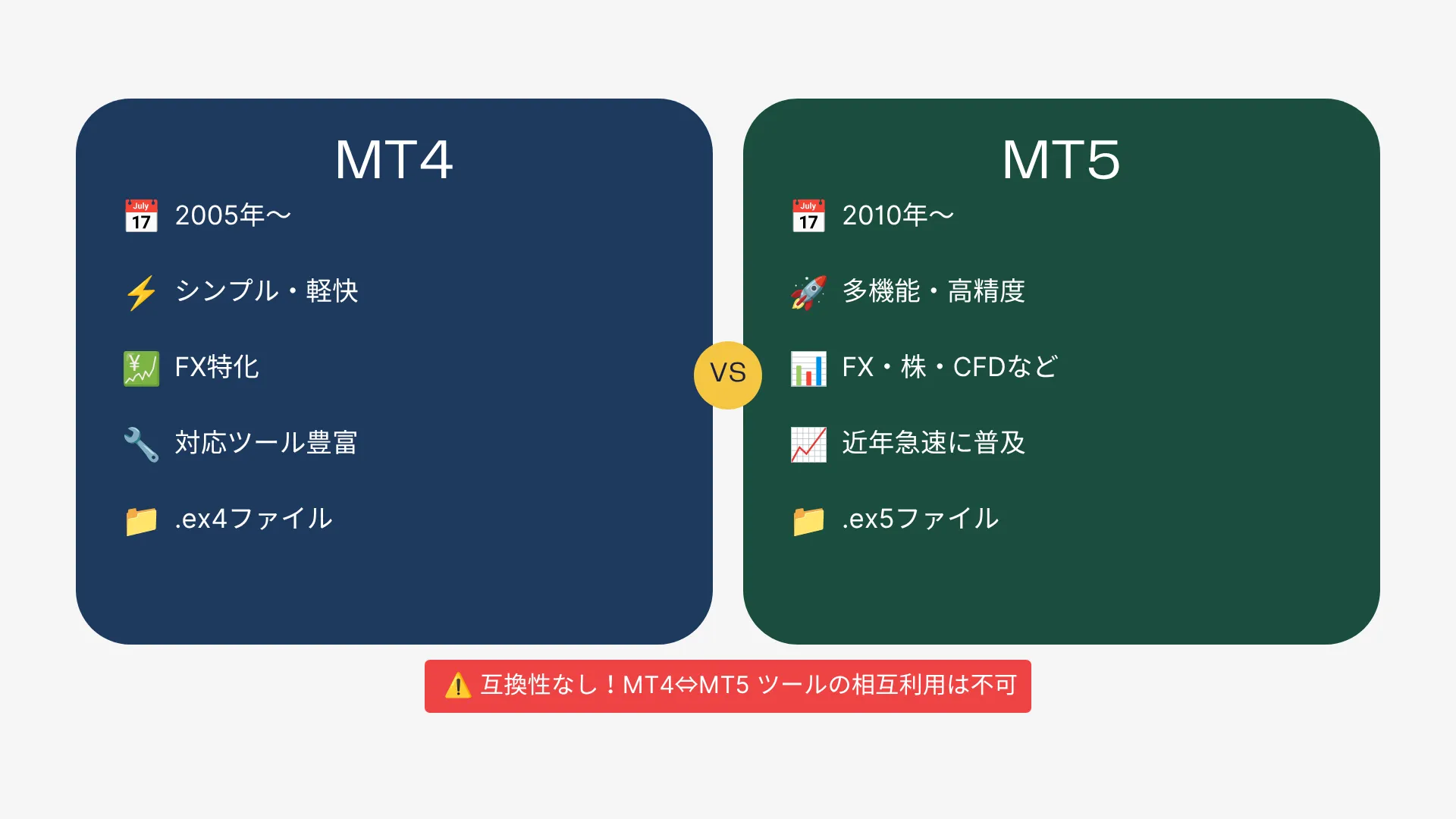
Most importantly, MT4 tools (.ex4 files) cannot be used in MT5.
MT5 tools (.ex5 files) cannot be used in MT4.
Because they are not compatible, always check whether the tool you want is MT4-compatible or MT5-compatible before purchasing.
Which should you choose?
If you think simply, choose based on the following criteria.
- If the tool you want is MT4-compatible → use MT4
- If the tool you want is MT5-compatible → use MT5
If you haven’t decided on tools yet, beginners are advised to choose MT5, which is currently mainstream, to keep future tool options broadening.
In either case, confirm in advance that your FX broker supports MT4 and MT5.
CHAPTER 3: Install MT4/MT5 on your PC
Once you understand the types of tools and the platform differences, the next step is to install MT4 or MT5 on your PC. Both are free.
Downloading and installation steps
MT4/MT5 is basically downloaded from the FX broker’s website.
Access the broker’s site and find the page labeled “MT4 Download” or “MT5 Download.”
Double-click the downloaded .exe file to launch the installation wizard.
Generally, just keep clicking Next according to on-screen instructions. The installation folder can be left as default.
First try with a broker’s demo account
If you’re using MT4/MT5 for the first time, we strongly recommend practicing with a demo account (simulation account).
Since it uses virtual money, you won’t risk real losses, and you can safely practice how to use the tools.
Most FX brokers provide free demo accounts.
When you apply for a demo account on the broker’s site, you will be issued a server name, login ID, and password.
Launch MT4/MT5, select File > Login to Trading Account, and enter these three pieces of information to display a chart.
Basic screen layout
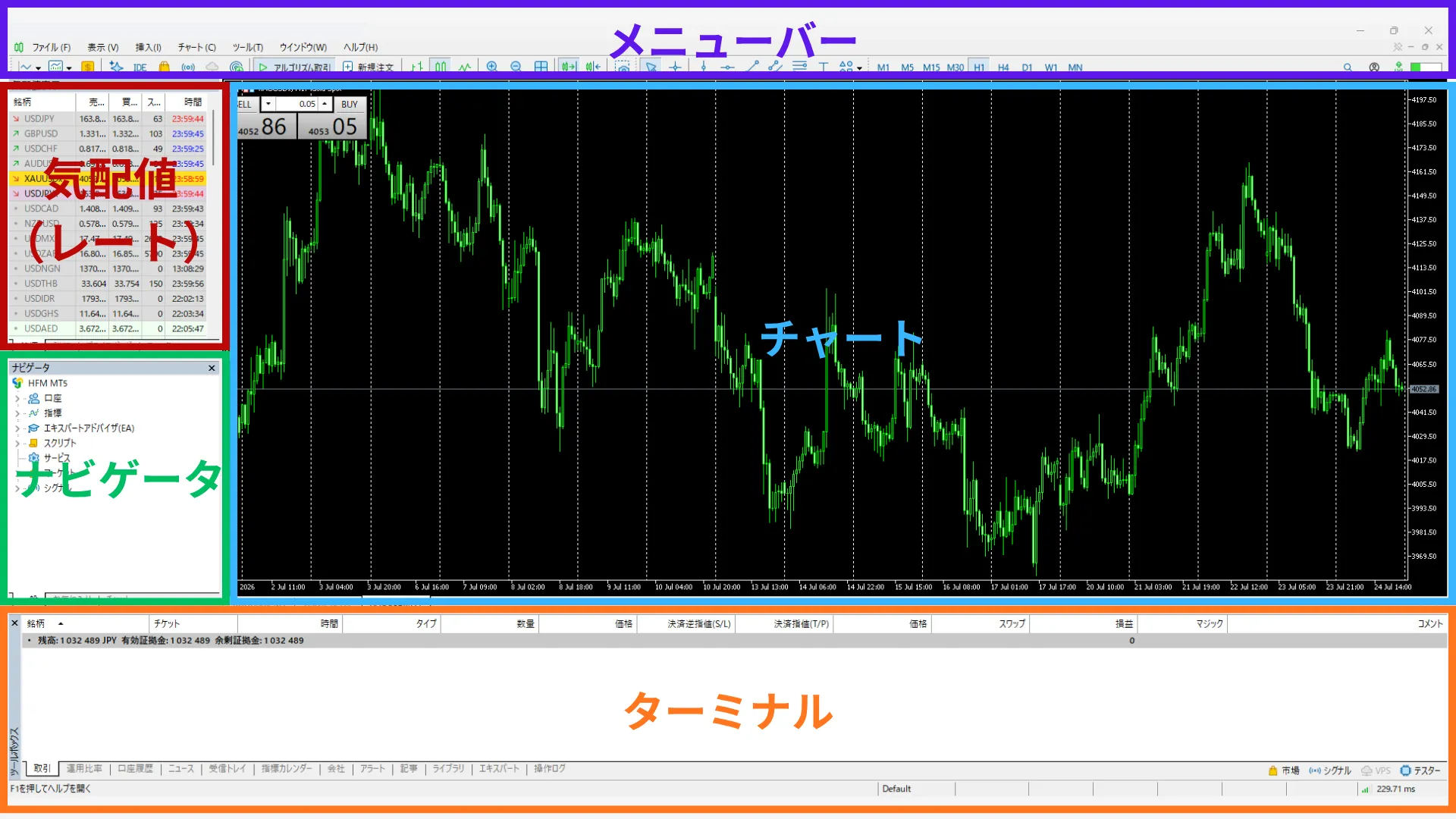
This is MT5, but the screen layout is the same in MT4.
When you start MT4/MT5, several windows appear. At first you may be confused, but you mainly use the following three areas.
Chart window: The main candlestick chart displayed in the center of the screen. You can monitor price movement in real time.
Navigator: A panel on the left side of the screen. Indicators and EA files are listed here. You also apply them from here.
Terminal: A panel at the bottom of the screen. You can check your current positions, profit and loss, and trading history here.
Timeframe switching: Use the buttons on the top toolbar labeled M1, M5, M15, M30, H1, H4, D1, W1, MN. M1 is 1-minute, H1 is 1-hour, D1 is daily.
CHAPTER 4: How to install and use indicators and signal tools
Once MT4/MT5 is ready, you can start installing tools. First, I’ll explain how to install indicators and signal tools.
Check the file type
The indicators and signal tools purchased from GogoJungle are typically provided in one of the following file formats.
MT4 files have the extension .ex4. MT5 files have the extension .ex5.
Check the extension of the downloaded file and make sure it matches the MT4 or MT5 you are using.
If you use the wrong one, it may not appear in Navigator or may not work when applied.
Place the files in the correct folder
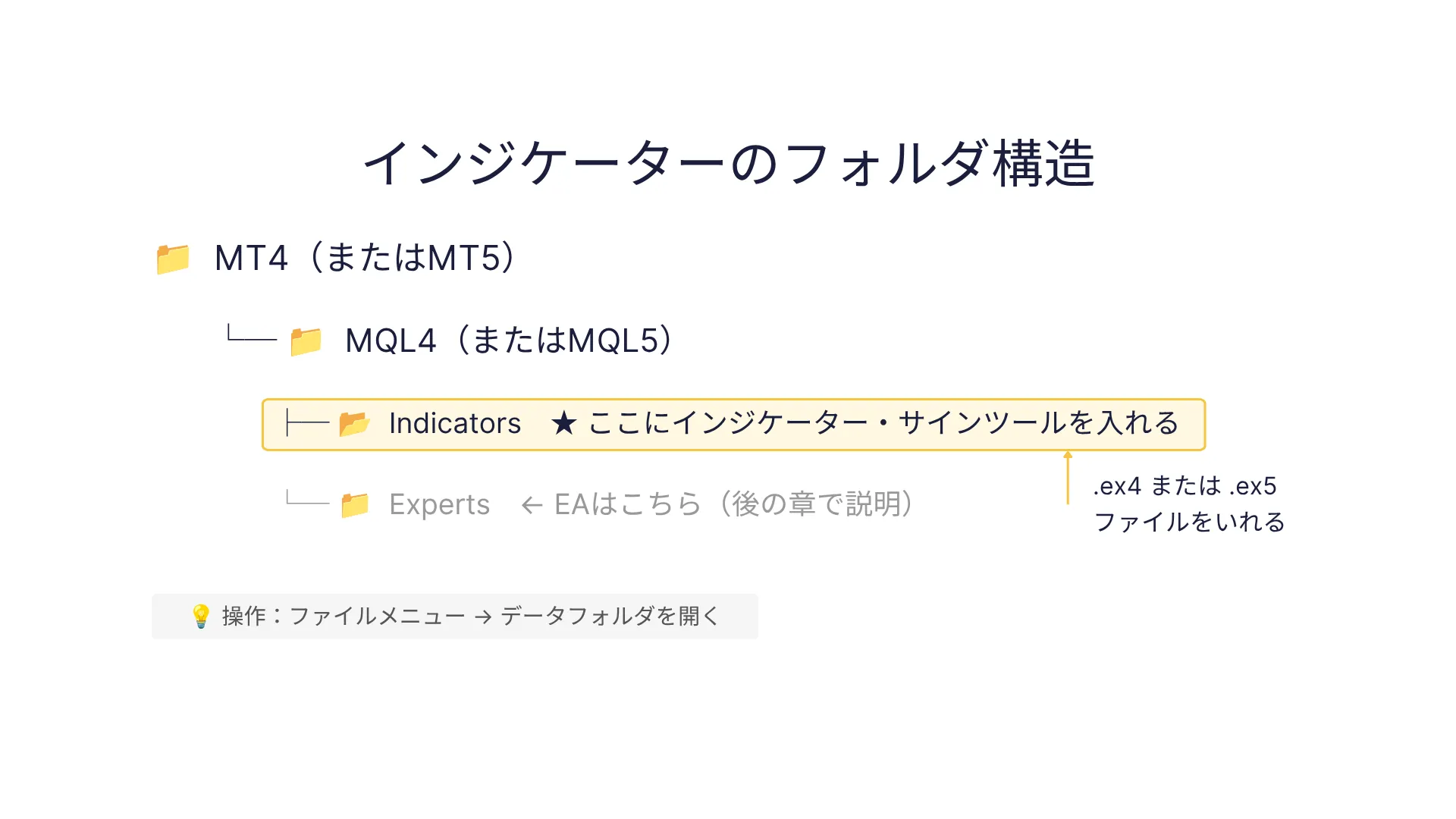
Tool files must be copied into specific MT4/MT5 folders.
- First, start MT4 or MT5 and click the “File” menu at the top of the screen.
- Click “Open Data Folder.” Windows Explorer will open showing the folder where MT4/MT5 data is stored.
- Within that folder, you’ll find an MQL4 or MQL5 folder. Open the Indicators folder inside it.
- Copy (paste) the downloaded .ex4 or .ex5 file into this Indicators folder.
- After copying, close MT4/MT5 and restart it.
- After restarting, if you see the copied tool names under Indicators in the Navigator panel on the left, you’re ready.
How to apply to a chart
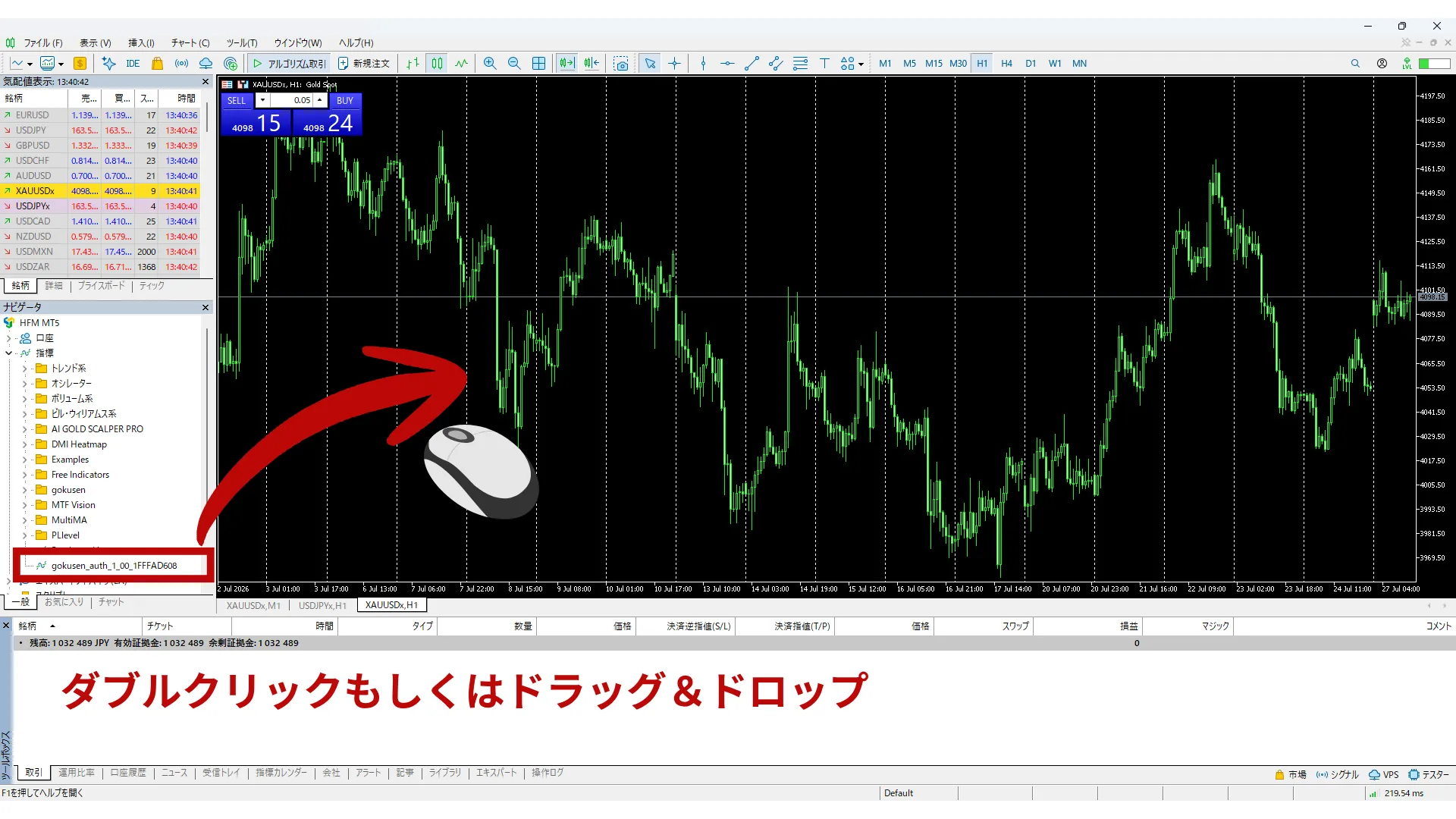
- In the Navigator panel, double-click the indicator name or drag it onto the chart window.
- The parameter settings window will open. Here you can adjust various settings about how the tool operates. There are numeric fields and true/false toggles. If you’re using it for the first time, you can safely press OK with the default settings. You can change settings later if needed.
- Press OK and the indicator will appear on the chart. If it’s a moving average, a line will appear; if it’s a signal tool, arrows or colors will appear. That’s it—installation complete.
Checklist if it doesn’t display correctly
If nothing appears after applying to the chart, please check the following in order.
- First, confirm the file extension matches the platform you’re using.
- If MT4, use .ex4; if MT5, use .ex5. Then confirm the file was copied into the Indicators folder (sometimes people place it in the Experts folder by mistake).
- If still not resolved, fully close MT4/MT5 and restart.
- Also, some tools only support certain timeframes or symbols, so check the manual or product description as well.
CHAPTER 5: How to install and use EA
EA requires one more setup step than indicators: you must enable “allow automated trading.”
Let’s go through it in order.
Place the EA file in the EA folder
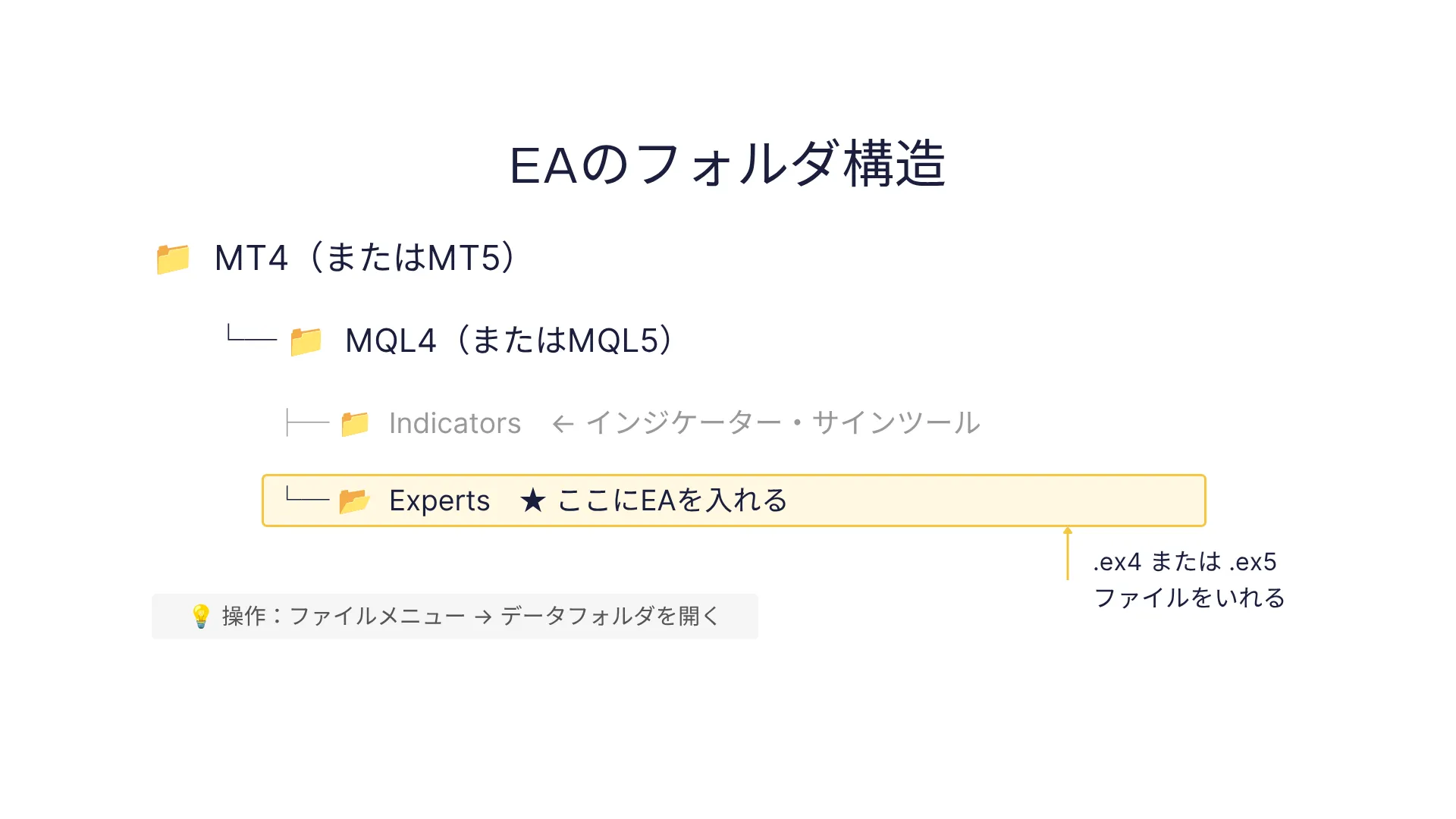
EA files are placed in MT4/MT5 data folders just like indicators.
However, the folder for EAs is separate from indicators.
- Open MT4/MT5 and click the File menu > Open Data Folder, then open the MQL4 or MQL5 folder.
- Open the Experts folder.
- Copy the EA file (.ex4 or .ex5) into this Experts folder.
- Restart MT4/MT5 after copying.
- If the EA name appears under Expert Advisors in the Navigator panel, you’re ready.
Setting to allow automatic trading (required!)
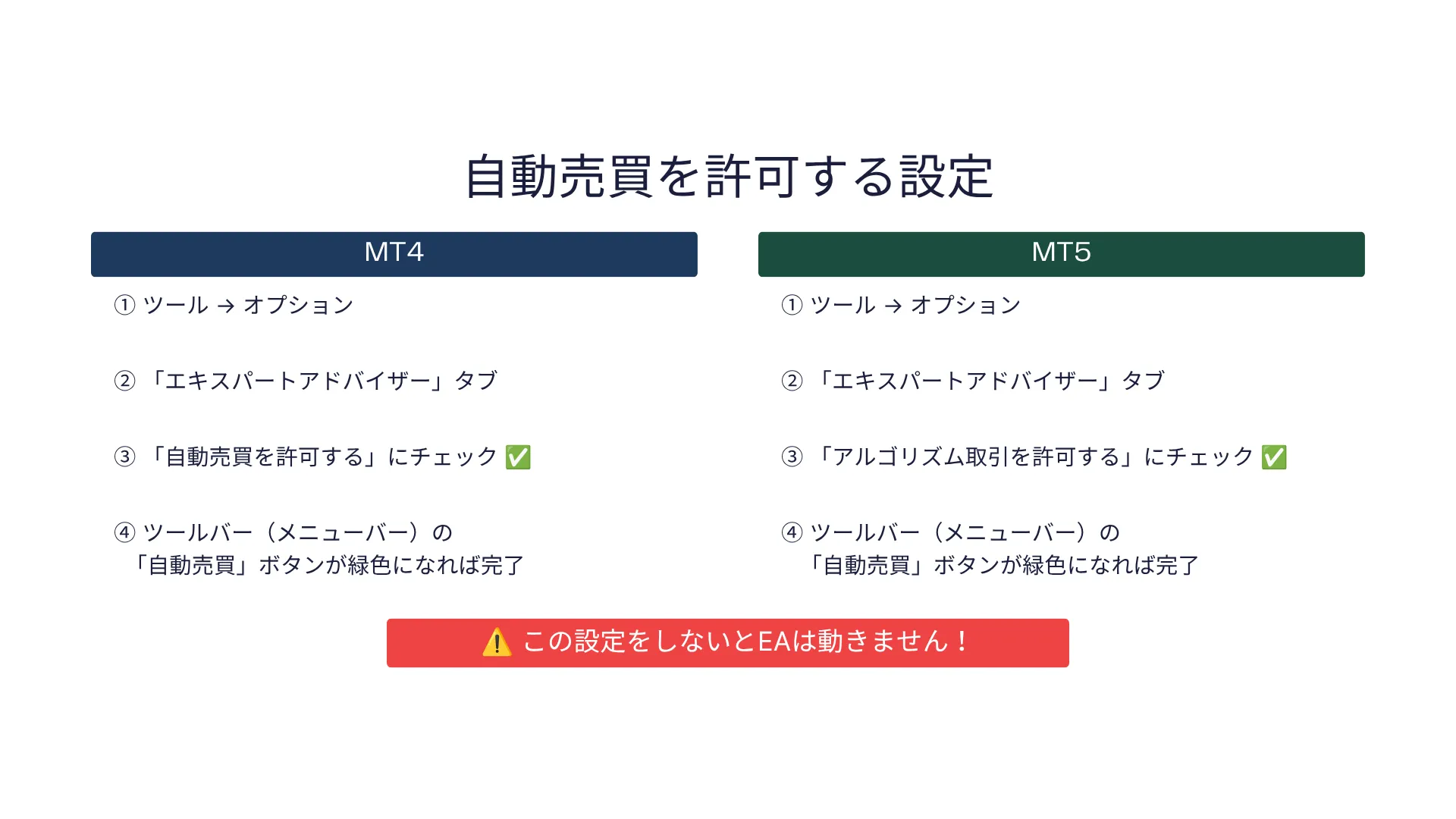
An essential setting to run an EA is allowing automatic trading. If this isn’t set, the EA won’t place orders when applied to a chart.
In MT4: open Tools > Options at the top of the screen.
Select the Expert Advisors tab and ensure “Allow automated trading” is checked.
If not checked, click to check it and press OK.
In MT5: open Tools > Options. Select the Expert Advisors tab and check “Allow algorithmic trading,” then press OK.
After this, there will be an “Auto trading” button on the toolbar at the top of MT4/MT5.
If this button is green, automatic trading is enabled. If gray or red, click the button to turn it green.
Apply EA to a chart
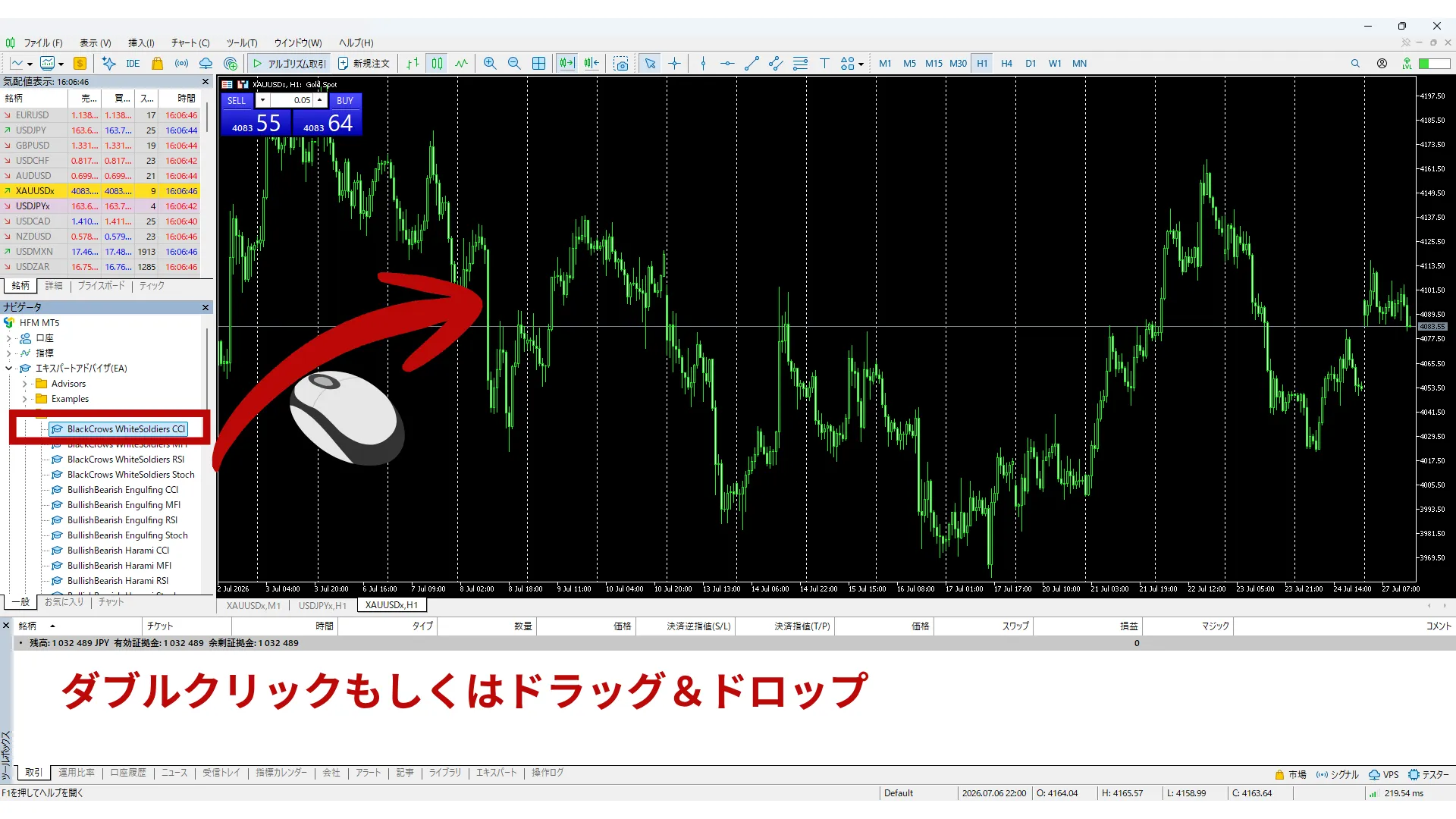
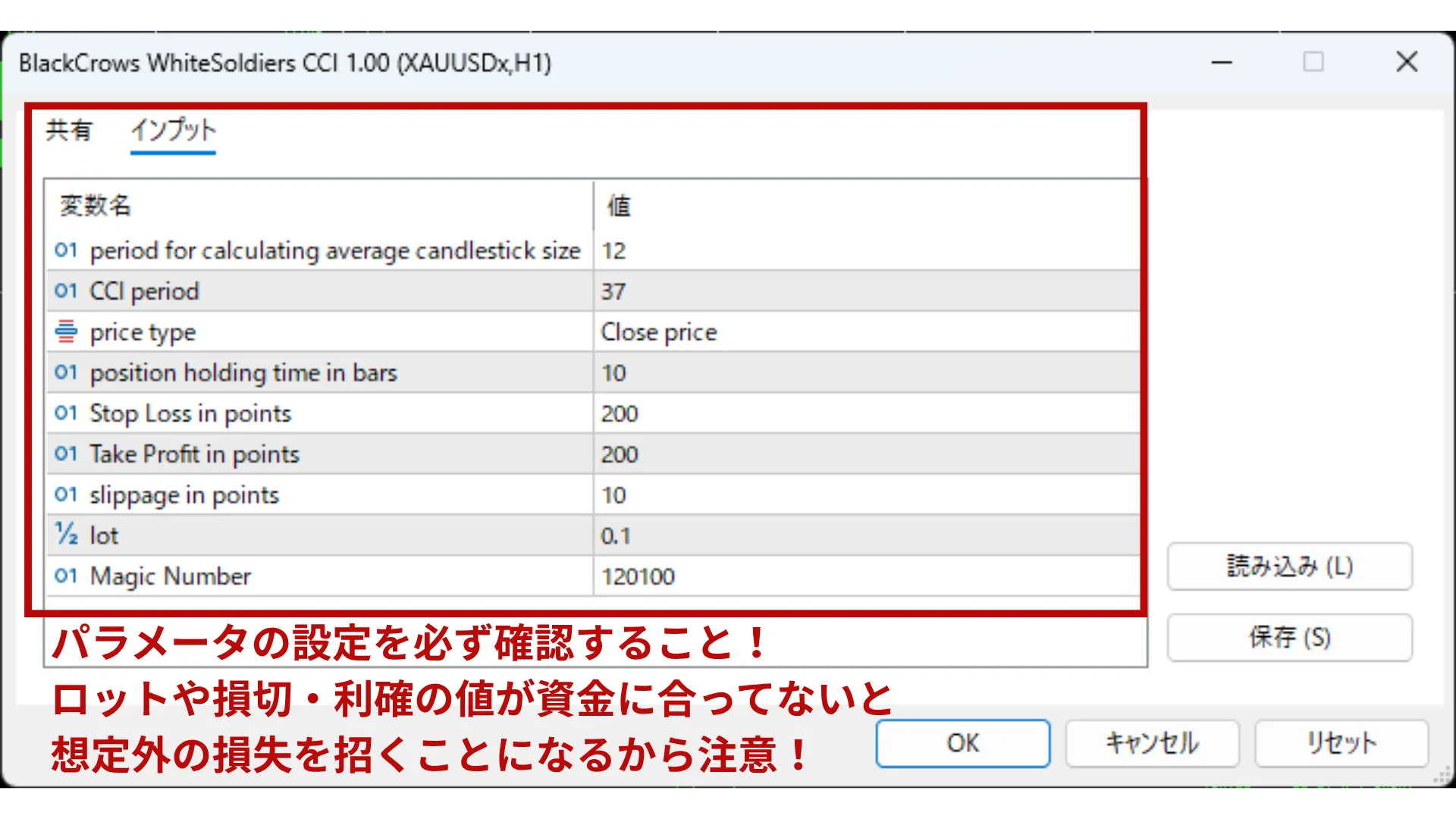
- From the Navigator panel, drag and drop the EA name onto the chart.
- The parameter settings window opens—set lot size, SL, TP, and other parameters. Please refer to the EA manual for the meaning of each parameter.
- Click OK and the EA name and a “smiling face” icon will appear in the top-right of the chart. If the smile is active, the EA is functioning normally. If the icon shows a frowning face or is neutral, the automated trading permissions may not be set correctly. (For MT5, a blue-filled hat mark indicates normal operation; gray means off.)
Important cautions when using EA
To keep trading automatically, you must keep MT4/MT5 running.
If you turn off your computer or close MT4/MT5, the EA stops.
Running EAs on a home PC for 24 hours a day can be impractical due to power costs and hardware risk.
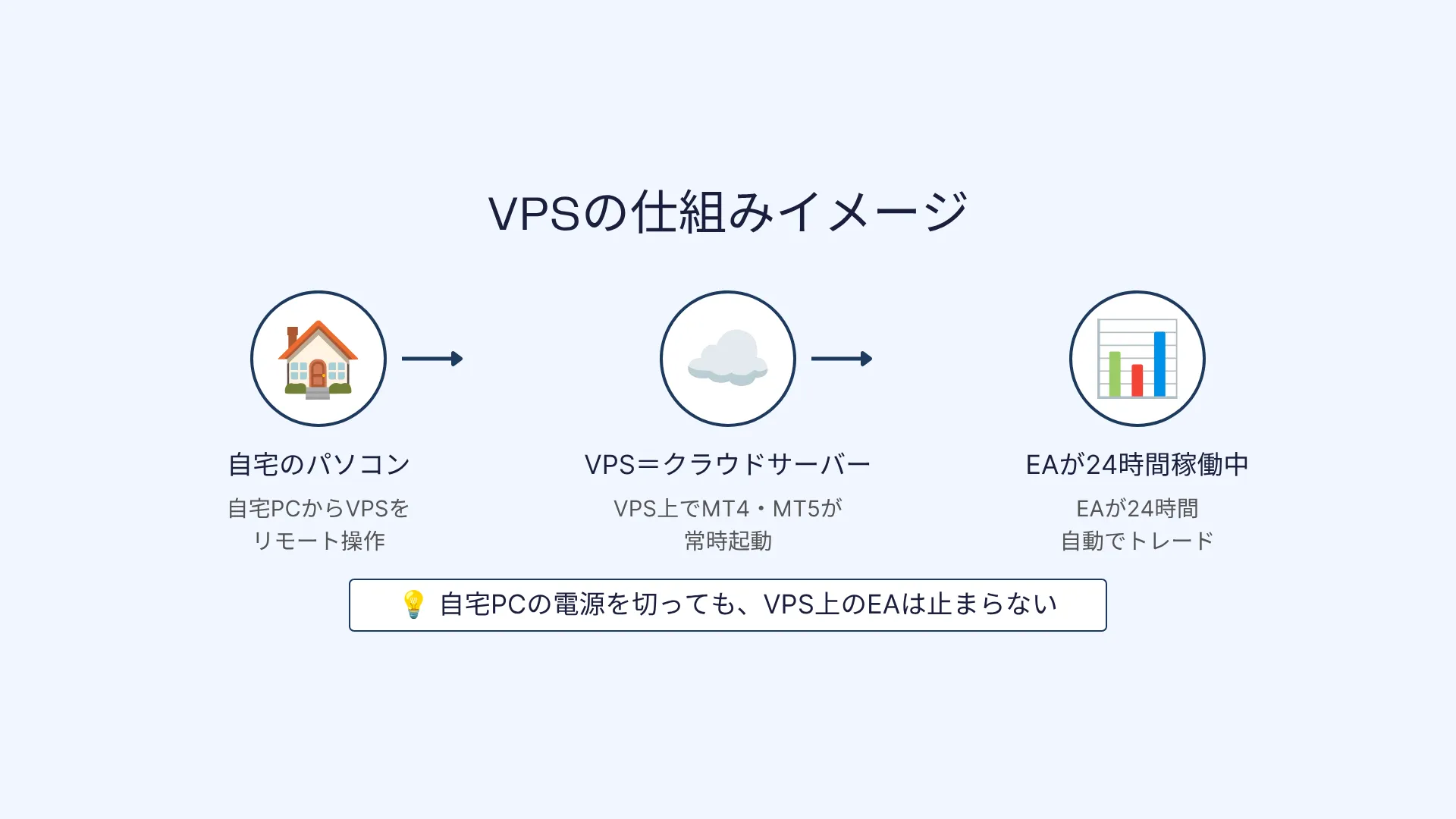
In such cases,consider using a VPS (Virtual Private Server).
A VPS is a service that rents a cloud-based server (a virtual PC) on the internet.
Install MT4/MT5 on the VPS and run the EA there, so your own PC can be off while the EA runs 24 hours a day.
FX VPS services typically cost from a few hundred to a few thousand yen per month.If you want to operate EAs seriously, using a VPS is highly recommended.
CHAPTER 6: The overall flow from purchasing tools on GogoJungle to starting to use them
Here is a整理 of everything covered so far, outlining the flow from purchasing on GogoJungle to actually being able to use the tools.
If you’re unsure, return to this list and check.
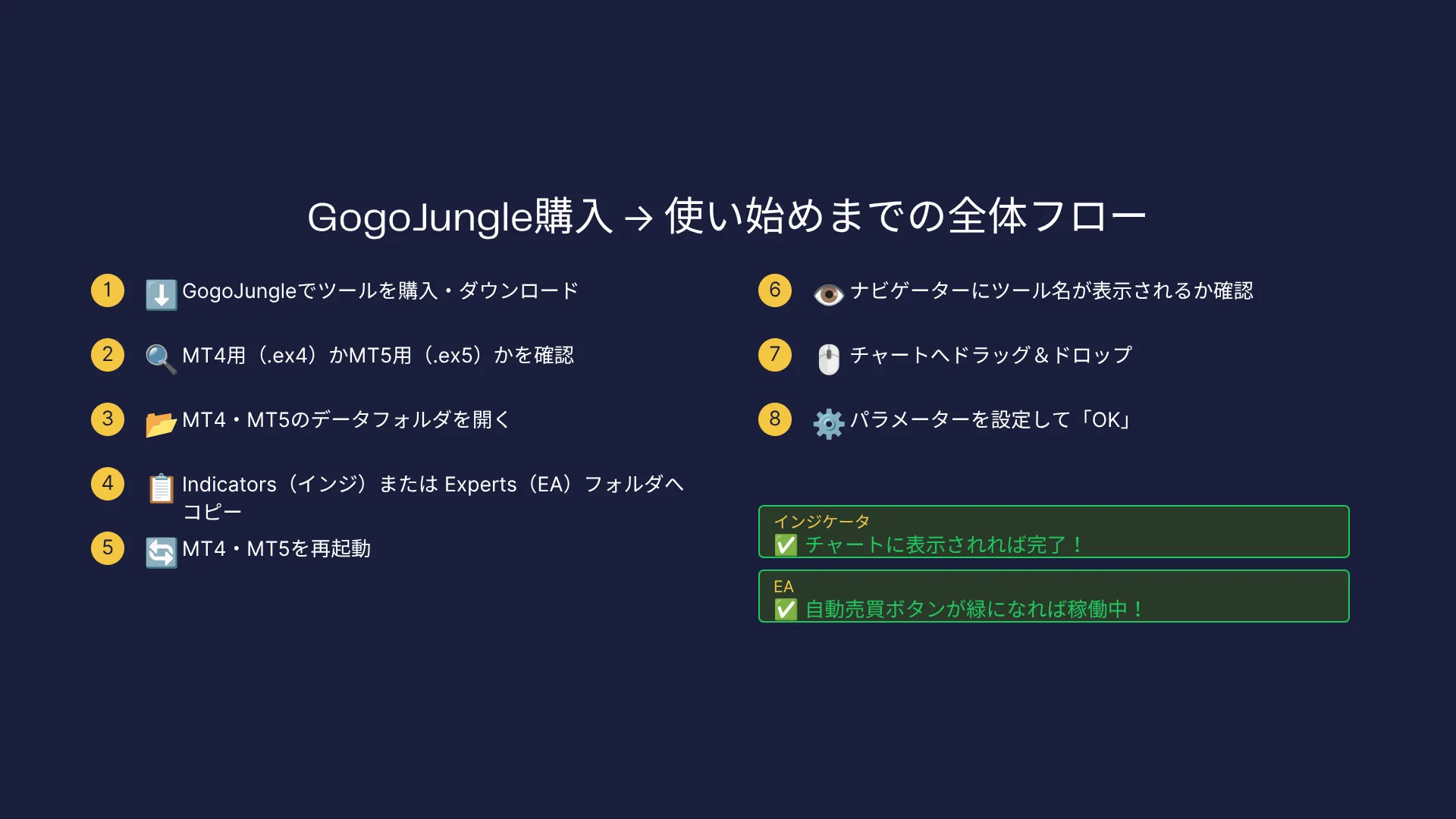
- Find a tool on GogoJungle and check the product page
- Check on the product page whether it is MT4-compatible or MT5-compatible
- Verify that it matches the platform you use (MT4 or MT5)
- Purchase the tool on GogoJungle and download the file
- Check the file extension of the downloaded file (.ex4 for MT4 / .ex5 for MT5)
- Open the folder via MT4/MT5: File > Open Data Folder
- Copy indicators to the MQL4 (or MQL5) / Indicators folder
- Copy EA to the MQL4 (or MQL5) / Experts folder
- Restart MT4/MT5 and confirm the tool appears in the Navigator
- Drag & drop the tool onto a chart, set parameters, and press OK
- Indicators and signal tools appear on the chart to complete the setup
- For EAs, check Tools > Options > Allow automated trading, and ensure the toolbar’s auto-trading button is green to indicate active operation
If you run into trouble with this procedure, consult the manual posted on the tool’s product page.
Many tools come with detailed operation manuals. You can also ask the developer questions in the product’s comment section on GogoJungle.
Summary
We explained the differences among the three tools (indicator, signal tool, EA), how to choose between MT4 and MT5, and the steps from installing files to actually running them.
It may seem difficult at first, but once you try it, it’s simply “copy files and drag & drop.”
Once you learn how, you’ll be able to install second and third tools without hesitation.
GogoJungle offers many tools designed to be beginner-friendly.
If a tool catches your interest, I recommend starting with a demo account. It lets you practice how to use it without risk and check whether it fits your trading style.
If you have any questions, please use the product’s details page, manual, and the comments section for help.