

[MQL5 Paradise Part 2] First time programming! Let's make MT5 say "Hello"
Welcome back! Let’s open the development environment right away
Hello everyone. This is Pineapple. In the first episode of “MQL5 Paradise,” I talked about the mindset for automated trading program development and the importance of a simple yet robust system. If you feel even a little “this looks interesting,” I’m very glad.
Now, this time we’re starting the practical part. As promised last time, let’s actually run MT5 (MetaTrader 5) and take a first step into the world of programming.
Have you taken a seat in front of your computer and prepared your favorite drink? Please start MT5 with a relaxed mindset.
First, open the dedicated screen for writing programs,“MetaEditor (Meta Editor)”Click the “IDE” button at the top of MT5 or press the keyboard key F4. A new window with a white background and several menus should have opened. This will be the kitchen where we will write our “recipes (programs)” from now on.
EA, Indicator, Script. Which one will we make today?
Once MetaEditor is open, let’s immediately create a new program file. Click the “New” button in the upper left of the screen to launch the “MQL5 Wizard” guidance screen.
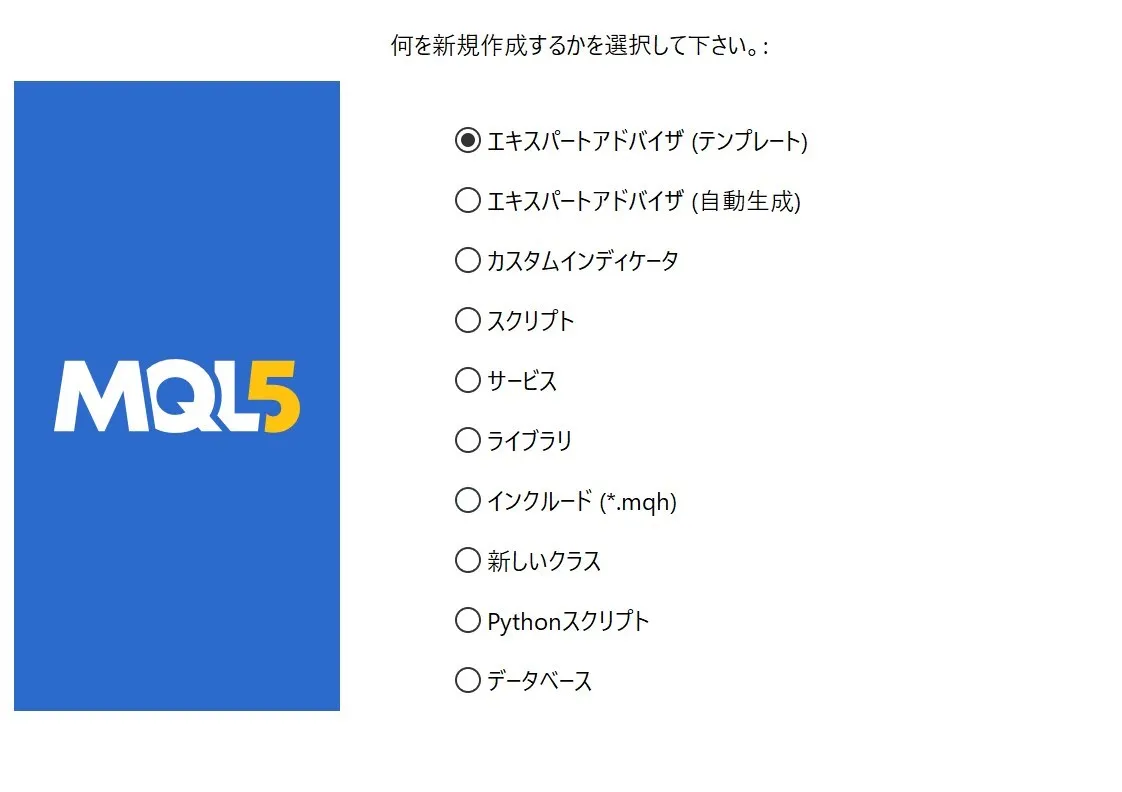
Here you’ll be asked what type of program you want to create. Broadly, there are three representative types of programs you can make in MQL5.
- Expert Advisor (EA)When attached to a chart, it works 24/7, constantly deciding “Should I buy or sell now?” as prices move.
- Custom IndicatorA program specialized for analysis, drawing moving averages on the chart or signaling arrows when conditions are met. It does not place orders.
- ScriptThe moment you drop (apply) it on the chart,“it performs a predefined task once and then finishes”like a helper on an errand.
This time we want to perform a simple one-off task: make MT5 greet us, so we’ll choose“Script”Select Script and click Next, give it a title you like such as Hello_MQL5, and press Finish.
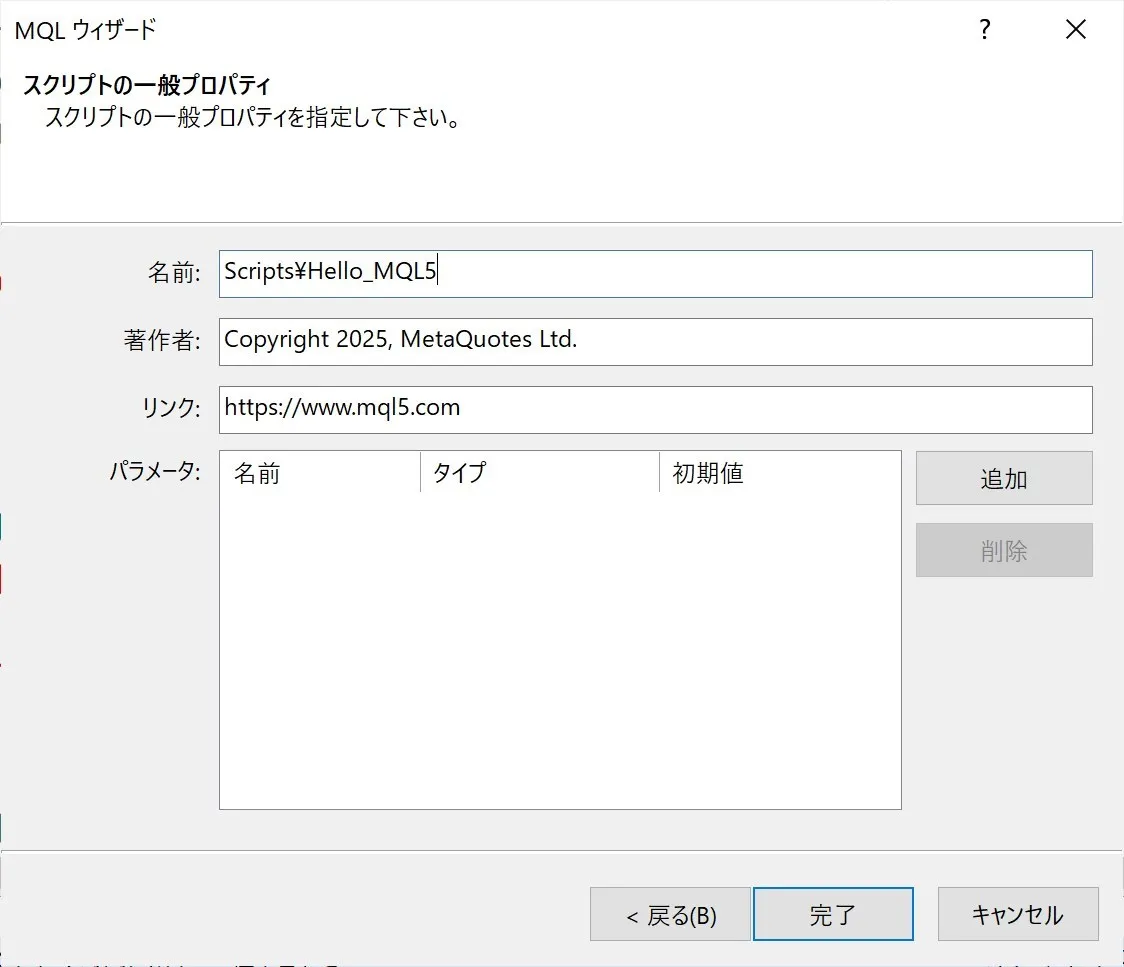
Let’s decode the program’s “skeleton”
When a new script file is created, the screen will already contain some text (source code).
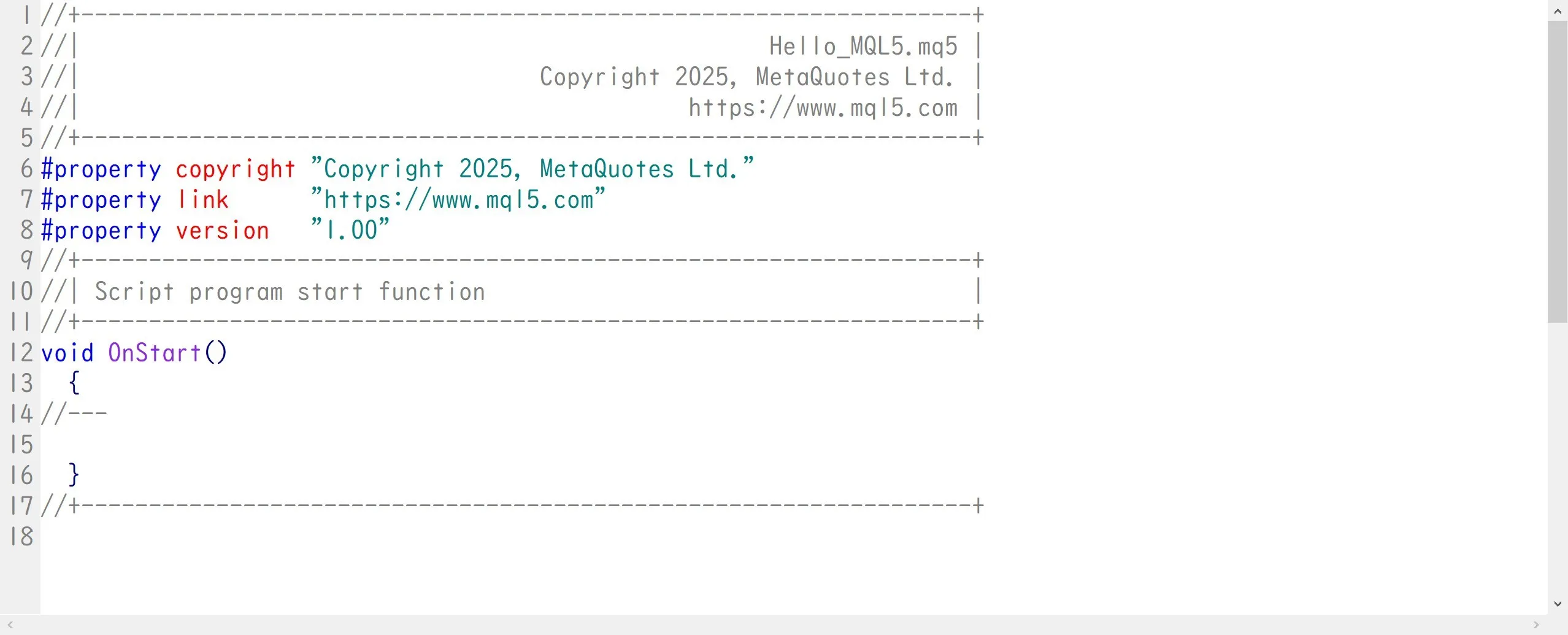
“Oh no, it’s all in English and looks hard…”
If you’re about to close the screen in that thought, please wait a moment! Take a deep breath and look carefully. In fact, most of the initial text is just the program’s “explanation” or “title.” MT5 is kindly providing a space to note who created it and when.
The most important is the block at the bottom of the screen that says“This is where the processing starts”.
//+------------------------------------------------------------------+
//| Script program start function                                    |
//+------------------------------------------------------------------+
void OnStart()
  {
//---

  }
//+------------------------------------------------------------------+
MQL5 scripts come with a special frame indicating the starting point. It’s like the starting line of a 100m race. When you run the program, MT5 finds this starting line and executes the instructions inside it from top to bottom.
What we need to do is write our requests inside this “start line frame” so MT5 will do what we want. It’s very simple, right?
A process to make MT5 say “Hello”
Now, inside the start line frame, let’s write our first instruction. This time we’ll request MT5 to“Display the text I specify at a specific place on the screen”.
In the world of MQL5, there is a dedicated “print” operation to output text and keep a log. It’s not printing on paper, but imagine printing to MT5’s internal log (logbook).
When writing this print operation, there are a few conventions (rules).
- Enclose the text you want to output in quotes "For example, to display the Japanese text “こんにちは、MQL5!”, if written as is, MT5 might be confused whether this is a program instruction or plain text. By surrounding the text with quotes, you tell it, “this is just a message, display it as is.”
- End the instruction with a semicolon ;Just like ending a sentence with a period, in MQL5 you end a statement with a semicolon to indicate the end of that command. Forgetting it would confuse MT5 and cause an error.
Follow these two rules and write the print instruction inside the start line.
“Use the print function to output the message, ‘Hello, MQL5!’. End with a semicolon.”
//+------------------------------------------------------------------+
//| Hello_MQL5.mq5 |
//| Copyright 2025, MetaQuotes Ltd. |
//| https://www.mql5.com |
//+------------------------------------------------------------------+
#property copyright "Copyright 2025, MetaQuotes Ltd."
#property link "https://www.mql5.com"
#property version "1.00"
//+------------------------------------------------------------------+
//| Script program start function |
//+------------------------------------------------------------------+
//+------------------------------------------------------------------+ //| Script program start function | //+------------------------------------------------------------------+ void OnStart() { // Print関数を使ってメッセージを出力します Print("こんにちは、MQL5!"); } //+------------------------------------------------------------------+
And that’s all, our very first program (recipe) is complete.
The magic of compiling (translating) words for MT5
After finishing the recipe, you’d like to run it in MT5 right away, but there’s one more step to do. It’s“compile”.
The recipe we wrote in MetaEditor is in human-readable language (MQL5). But the computer’s brain (CPU) cannot understand this language directly. Computers understand only sequences of 0s and 1s.
So, press the “Compile” button at the top of MetaEditor (or F7). MetaEditor will act as an excellent translator and instantly translate (convert) our MQL5 recipe into machine code that the computer can understand (0s and 1s).
After pressing Compile, look at the error display area at the bottom of the screen. If it shows “0 errors, 0 warnings,” translation is a great success!
If errors appear, it means MT5 is tilting its head, saying, “I don’t quite understand this spot.” Maybe there’s a typo, or you forgot the final semicolon, or there’s a full-width space mixed in? Errors aren’t something to fear. They’re gentle hints telling you what to fix, so review calmly.
A memorable first step! Let’s run it in MT5
When compilation succeeds with zero errors, it’s time to run. Return from MetaEditor to MT5’s chart screen.
Look at the Navigator window on the left side of the screen. If it isn’t visible, use the top menu to select View > Navigator. Expand the Script folder in the Navigator, and you should see the just-created Hello_MQL5 listed.
Click it with the mouse, and drag and drop it onto the chart that’s displayed.
“Huh? Nothing happens?”
You might think so. Actually, this print operation is not about showing big text in the middle of the chart. It quietly logs information in the background.
Look at the bottom of MT5’s screen“Toolbox”. If it’s not visible, open it via the View > Toolbox menu. Within the Toolbox, click the tab labeled “Experts”.
There you should see the message“Hello, MQL5!”recorded with the timestamp.
Congratulations! The text you wrote has been transmitted to MT5 through the language of programming. This is the memorable moment when you first moved the computer by your own will.
The role of the simple, robust system: the purpose of the print process
Some may wonder how a little text display relates to automated trading.
In fact, this seemingly modest “print process (log output)” isthe strongest weapon for building a simple and robust system.
When programming, EA may not always move exactly as you expect. You might ask, “Why did it enter here?” or “Why didn’t it exit here?” In such cases, embed print statements that show things like “the current moving average is XX” or “the buy conditions are met now” at key points.
Then, by just checking the Expert tab’s log, you can grasp the EA’s internal state and reasoning.
For black-box commercial EAs, you often can’t tell why you lost or won. But with an EA you built yourself, by outputting logs, you canfully understand how the program judged within the market.
To avoid excessive optimization (curve fitting), the system must have clear reasons for its actions, understood by you, the developer. The print process you learned today is the most important communication tool to interrogate the EA and verify those reasons.
Conclusion
Today we experienced, in one go, how to use MetaEditor, create a simple script, compile, and check log outputs. At first you might have felt unfamiliar, but perhaps you’ve come to feel that “it’s actually quite simple if you follow the steps.”
The joy of having the system move according to your own recipe. This small success builds toward a powerful automated trading system. Take your time and enjoy the process.
Next time, we’ll discuss the most important and convenient concept in programming“Variables”, a magic box to store numbers and text. We’ll explain how to store and retrieve data such as the “current price” or “lot size,” with easy-to-understand examples.
See you again in the next “MQL5 Paradise.” Here’s to your first program—cheers!