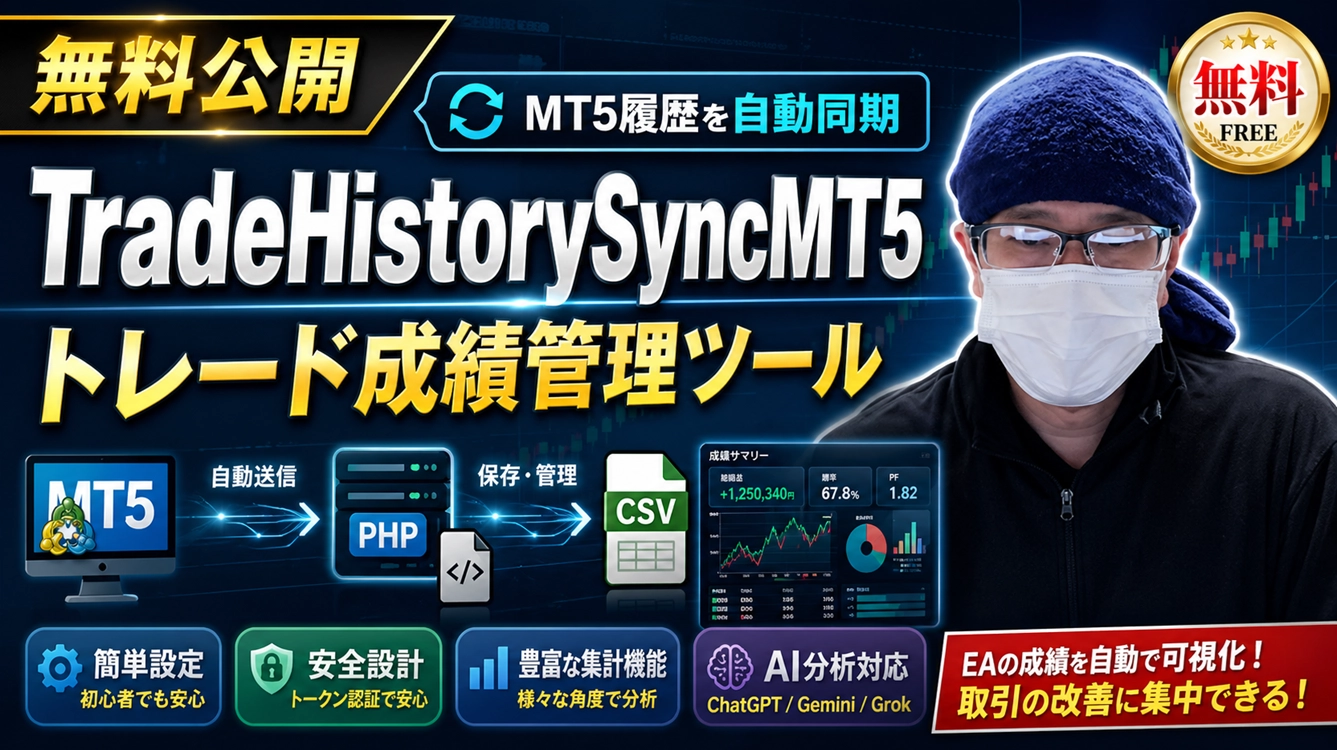

Free download of TradeHistorySyncMT5, a tool to manage MT5 EA trading history
TradeHistorySyncMT5is a tool to send MT5 EA trading history to a rental server and to check the results on a PHP admin dashboard.
The MT5 EA does not execute trades.
It only reads the account history and sends it to the PHP on the server side.
On the server side, received histories are saved as CSV, and can be viewed in a list, filtered, aggregated by a magic number, and analyzed by AI on the admin.php admin screen.
Copyright / Distribution Source
Copyright 2026, Masayan.
https://www.gogojungle.co.jp/finance/navi/articles/115391
TradeHistorySyncMT5 Trading History Synchronization System Download⇒trade_history_ver1.02.zip
Initial login information is as follows.
Username: admin
Password: 1111
Because MT5 market is closed on Saturday and Sunday, EA data transmission is not performed.
Therefore, trading history data will not be updated on weekends.
MQL5 EA copyright note
#property copyright "Copyright 2026, Masayan."
Please contact us for bugs, issues, customization requests, etc.
What you can do with this system
- Automatically send MT5 EA trading history to the server
- Save trading history as yearly CSV files
- Display history in a list on the admin screen
- Filter by year, magic number, currency pair, IN/OUT
- Check profit/loss and win rate by magic number
- Store brief comments per magic number
- Download filtered history as CSV
- Register AI analysis keys for ChatGPT, Gemini, Grok
File Descriptions
TradeHistorySync_MT5_Ver1.02.mq5
The MT5 EA source file. Compile with MetaEditor and use.
TradeHistorySync_MT5_Ver1.02.mq5
The MT5 EA source file. Compile with MetaEditor and use.
Place the EA in MT5's Experts folder.
TradeHistorySync_MT5_Ver1.02.ex5
Compiled MT5 EA file.
In MT5 property settings, enter the following URL
receive_trade_history.php
PHP file that receives JSON data sent from MT5.
Admin page is accessed at https://your-domain/admin.php
admin.php
Admin screen to check trading results. After login, you can view histories and aggregates.
Use to change the login password for the admin page
password.php
A page to create the hash string for the admin screen login password.
Security measure files (OK as default)
trade_history_config.php
File to set the PostKey that allows posting from MT5.
Needed when analyzing trading history with AI
analysis_prompts.php
File that manages standard prompts used for AI analysis.
data folder is created automatically; no upload needed
data/
Storage for CSVs, logs, API key files, etc.
What you need
To use this system, you need a server where PHP can run, in addition to MT5.
Rental hosting does not have to be expensive.
In many cases, the cheapest plan with PHP available will suffice.
Free servers may work if PHP is available, but for stable operation a paid rental server is recommended.
Initial setup flow
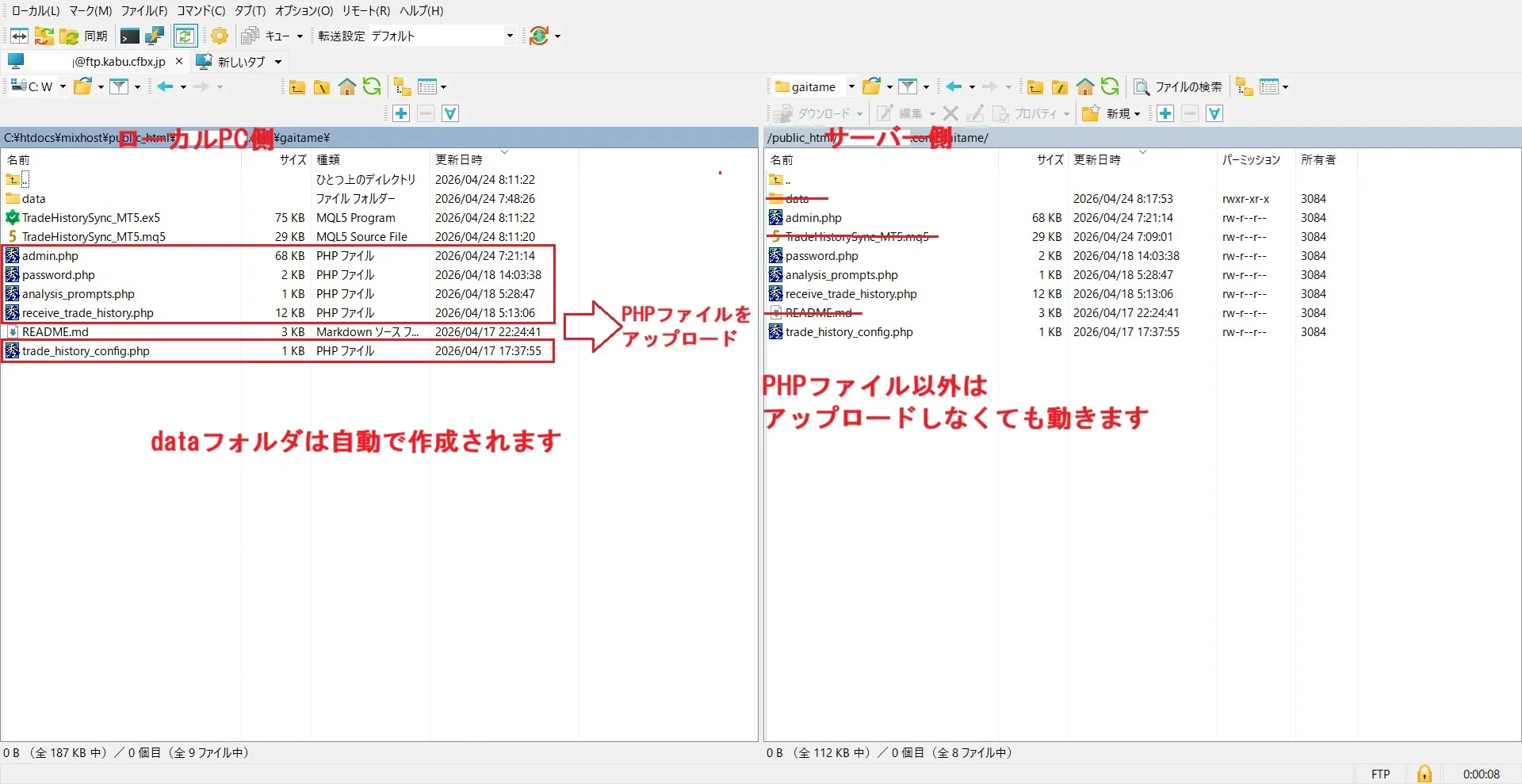
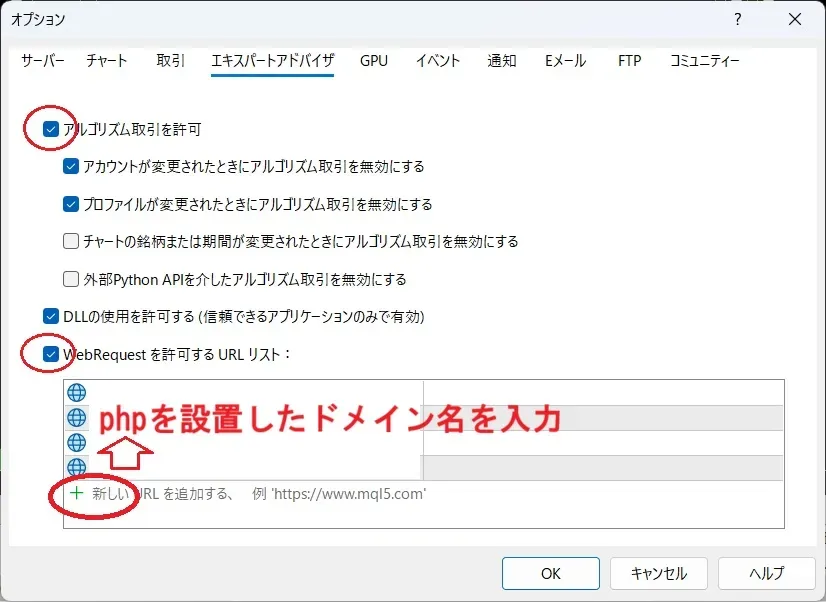
2.access receive_trade_history.phpvia a browser to verify accessibility.3.trade_history_config.php’spost_key, usually OK as defaultPostKey, enter the same value as on the PHP side.SyncEndpointURL, enter the server’sreceive_trade_history.phpURL.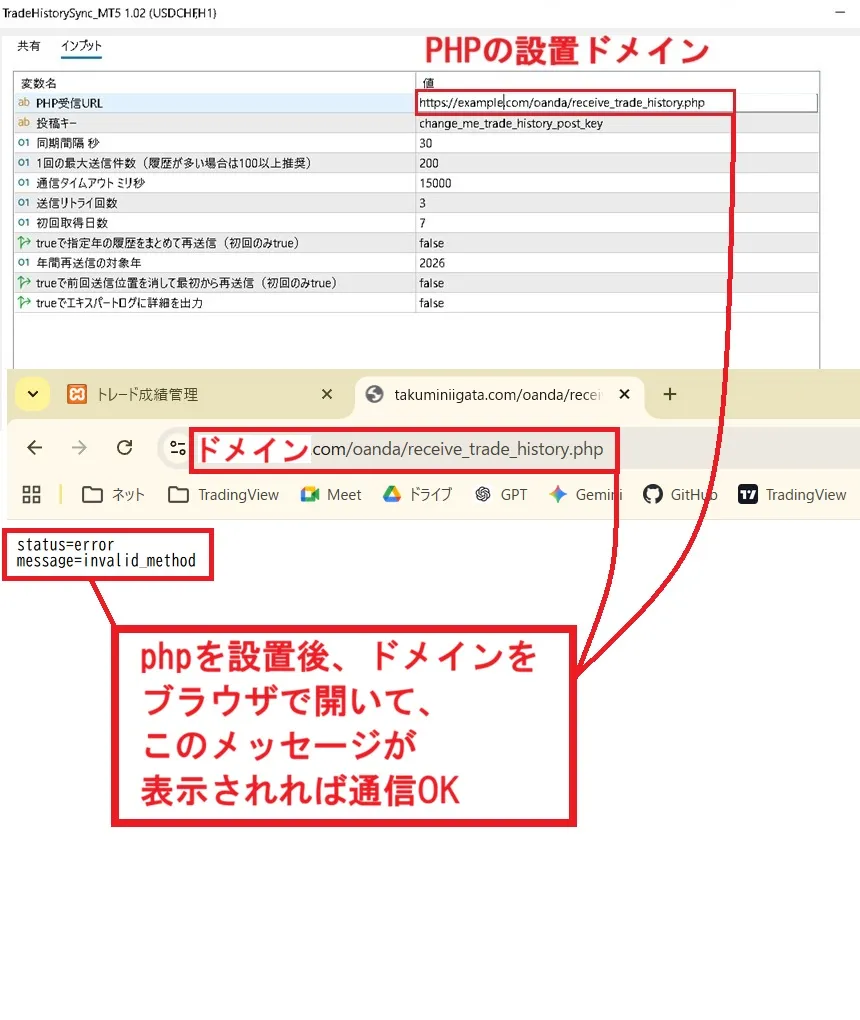 6.In MT5 WebRequest allowed URLs, add the destination domain.
In MT5, go to Tools ⇒ Options ⇒ Expert Advisors and configure the following.
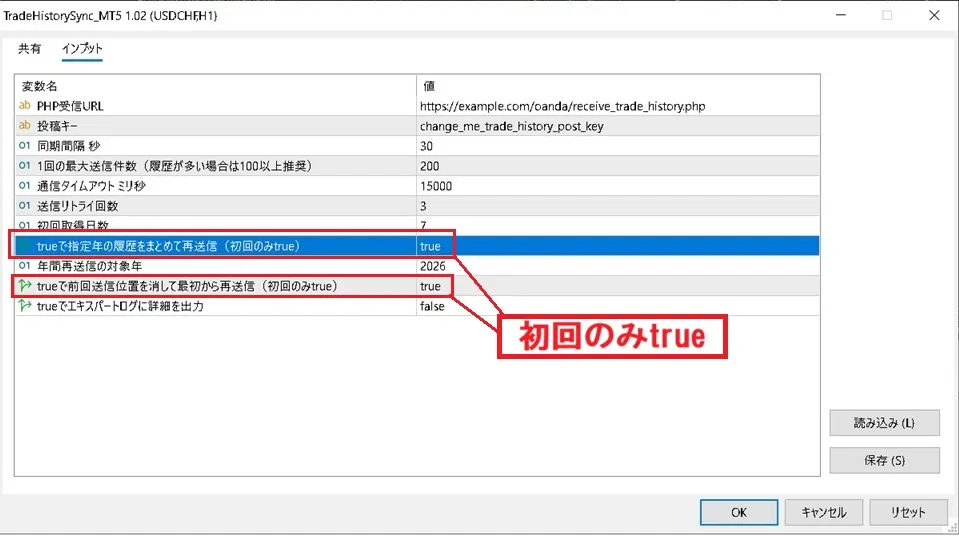
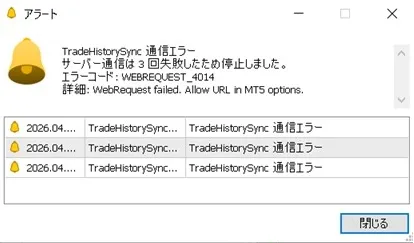
SyncEndpointURL settings
SyncEndpointURLis the URL where MT5 sends history data.Example: https://example.com/trade_history/receive_trade_history.phpIf this is incorrect, MT5 cannot communicate with the server.
First, in a browser, accessreceive_trade_history.phpand confirm the page exists.If the URL does not exist, or the URL differs from the upload destination, or the domain is entered incorrectly, communication errors occur.
PostKey settings
The MT5 side’sPostKey and the PHP side’strade_history_config.php, thepost_key must match.
MT5 side:PostKey = change_me_trade_history_post_keyreturn [If these values do not match, the server will not accept histories.
Normally, the default is fine, butIf you are using in a production environment, consider changing to a long, hard-to-guess string.
MT5 WebRequest permission settings
In MT5, if the EA communicates to an external URL, you must pre-allow the URL.
Open the following in MT5.
Tools > Options > Expert AdvisorsIn the WebRequest allowed URL list, add the destination domain.
Example:
https://example.com
receive_trade_history.phpRegister only the domain portion, not the full URL.
If you want to send history in bulk on the first run
If you want to send history for the specified year in bulk on the first run, configure the EA properties as follows.
Only on first run
YearlyBackfillMode = true
BackfillYear = 2026
ResetSyncStateOnStart = trueWith this setting, the history for the year specified in BackfillYear will be sent from the beginning.
After the first transmission is finished, revert to the following:
To check whether transmission is finished, log in to admin.php and check the logs.YearlyBackfillMode = false
ResetSyncStateOnStart = falseIf you revert to this state, from the next time onward, MT5 will resume from where it left off even if MT5 is restarted, sending only the remaining diffs.
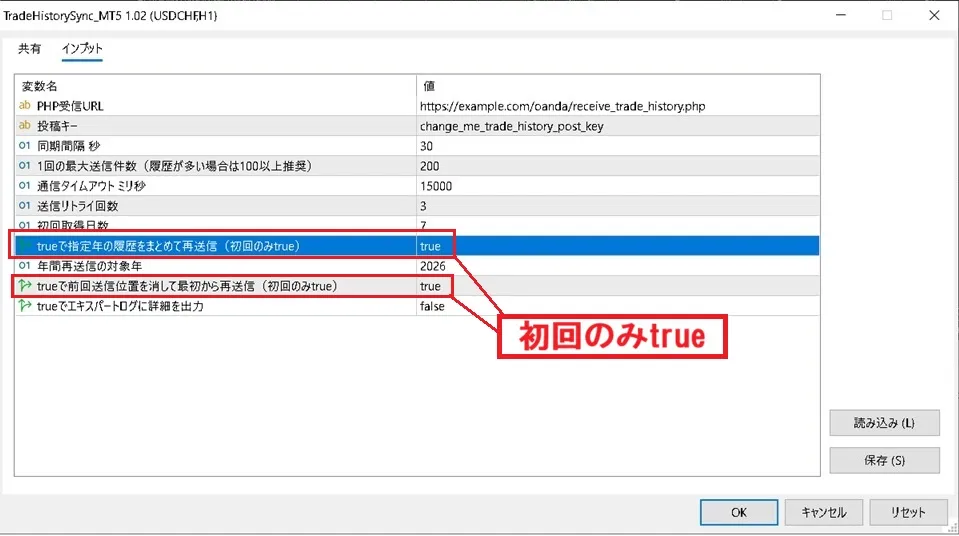
About InitialLookbackDays
When started in normal mode,InitialLookbackDays days worth of history will be sent retrospectively.
Example:
InitialLookbackDays = 7In this case, in normal mode, the past 7 days are targeted.
The first run sends all history, and subsequent runs do not send all history.If you want to send history for a specific year in bulk, set this to the first-run-only setting and run the EA.
MaxDealsPerBatch
MaxDealsPerBatch is the maximum number of history records sent in one transmission.
Example:
MaxDealsPerBatch = 100It does not send all trading history at once; it sends in batches of 100.
The sending interval is determined byTimerSeconds.For accounts with thousands of histories, it may take minutes to complete transmission.
Admin Dashboard
Initial login information is as follows.
Username: admin
Password: 1111
Example access URL:
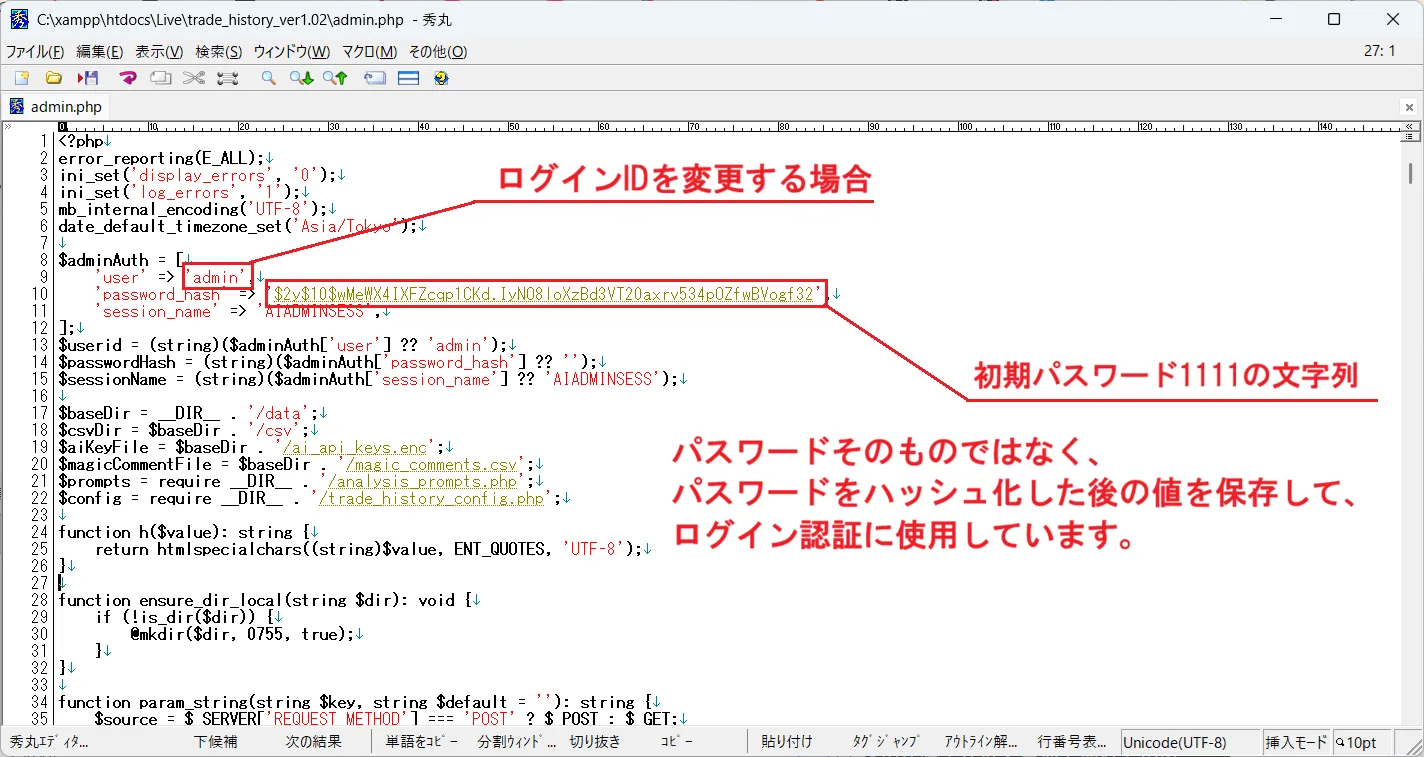
https://example.com/trade_history/admin.phpLogin information is managed inside
admin.phpunder$adminAuth.If you want to change the username, modify
admin.phptheuservalue.
If you want to change the password, create a new password hash string inpassword.phpand replacepassword_hashin admin.php.
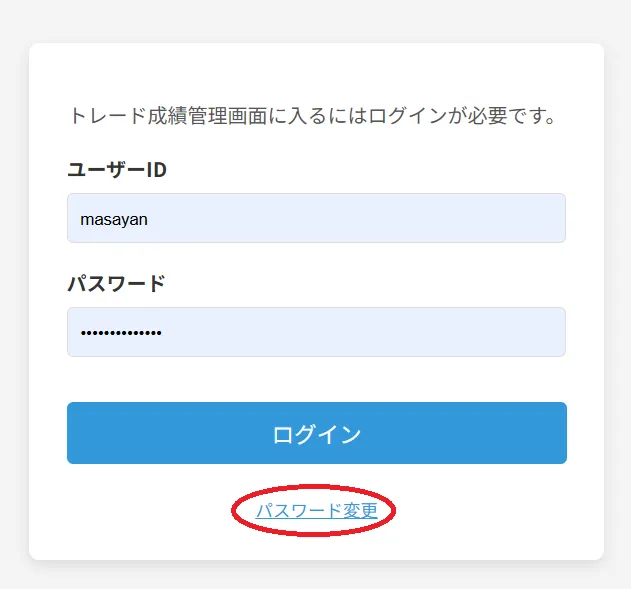
What you can do in the admin dashboard
After login, you can use the following features.
- List trading histories
- Filter by year, magic number, currency pair
- Toggle IN, OUT, INOUT views
- Pagination with up to 300 items per page
- View up to 100,000 rows of history
- Download filtered CSVs
- Check basic metrics
- Check PF, risk-reward, expected value
- Streaks, win/loss, by day, by time slot
- Monthly, daily totals by magic number and currency pair
- Manage comments per magic number
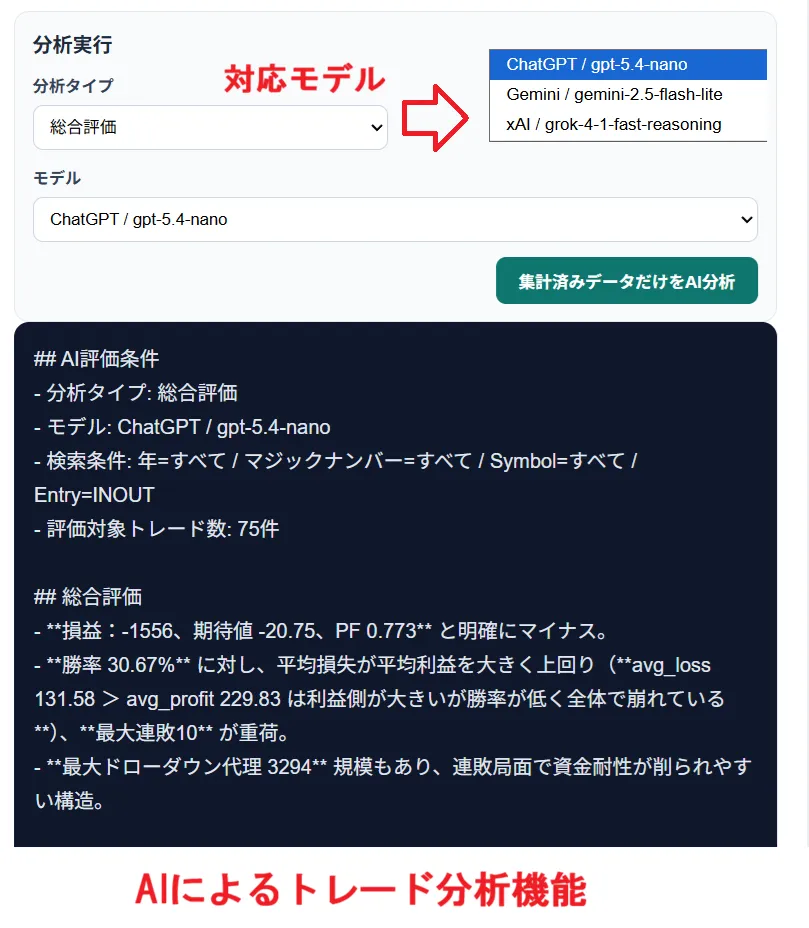
- AI analysis
AI Analysis
In the admin dashboard, you can register API keys for ChatGPT, Gemini, Grok.
Registering API keys allows sending aggregated trading results to AI and displaying analysis results.
AI analysis is optional.API keys are stored encrypted.
However, server management is the user’s responsibility.AI API usage fees apply according to each service’s pricing.
Storage format
Trading histories are saved as CSVs by account number and year.
data/csv/ACCOUNT_ID_YYYY.csv
data/csv/22005875_2027.csvThe index used to deduplicate is stored at
data/index/YYYY.idxThe deduplication uses the following combination
account_id + magic_number + deal_ticket + deal_timeThe same history being resent is designed to be unlikely to be saved as duplicate.
Notes for using multiple accounts
CSV files are separated by account number.
However, the admin dashboard reads multiple CSVs together, soif the same magic number exists across multiple accounts, the magic-number-based results are aggregated.
If you want to accurately separate by magic number,
it is generally recommended to use one MT5 account per installation folder.
If you manage multiple accounts in the same admin dashboard,
ensure magic numbers do not duplicate across accounts.
Manual trading
This system focuses on managing automated EA trading histories.
Manual trades often have magic number 0, which makes performance tracking per EA unsuitable.
If you want to separate performance by EA, configure and operate with the EA’s own magic numbers.
Behavior when communication errors occur
If the server URL is incorrect, WebRequest permission URL is not set, or PostKey does not match, a communication error occurs.
If communication fails, the EA will retry up to 3 times.
If it still fails, an error code is logged and a communication error is displayed on the chart.If an error occurs, please check the following:
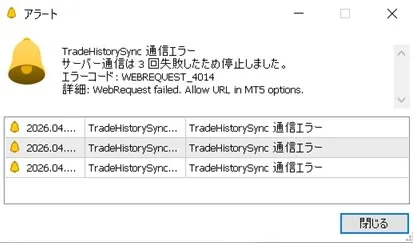
SyncEndpointURLIs it correct?receive_trade_history.phpCan you access it in a browser?- Is the domain added to MT5 WebRequest allowed URLs?
- MT5’s
PostKeyand PHP’spost_keymatch? - Is PHP running on the rental server?
Notes
This system is a tool to assist in managing trade histories.
It does not guarantee trading decisions or profits.When used in production, be sure to verify the post_key, admin username, and password.
Copyright / Distribution Source
Copyright 2026, Masayan.
https://www.gogojungle.co.jp/finance/navi/articles/115391
TradeHistorySyncMT5 Trading History Synchronization System Download⇒trade_history_ver1.02.zip
Initial login information is as follows.
Username: admin
Password: 1111
MT5 market is closed on Saturdays and Sundays, so EA data transmission does not occur.
Therefore, trading history data is not updated on weekends.