

How to Save and Load Indicator Settings (MT4)
How to Save and Load Indicator Settings (MT4)
Indicator settings can be saved and loaded as files.
Since the same settings can be reused on other charts or in other MT4 instances, you can save time on reconfiguration.
■ Steps to Save Settings
-
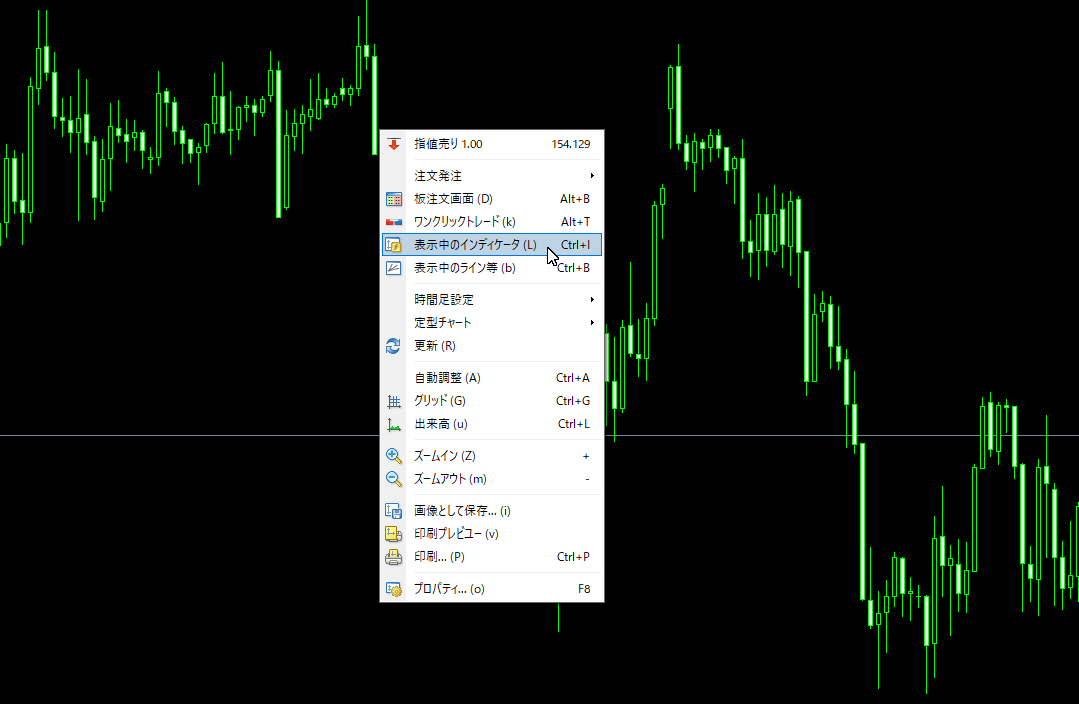
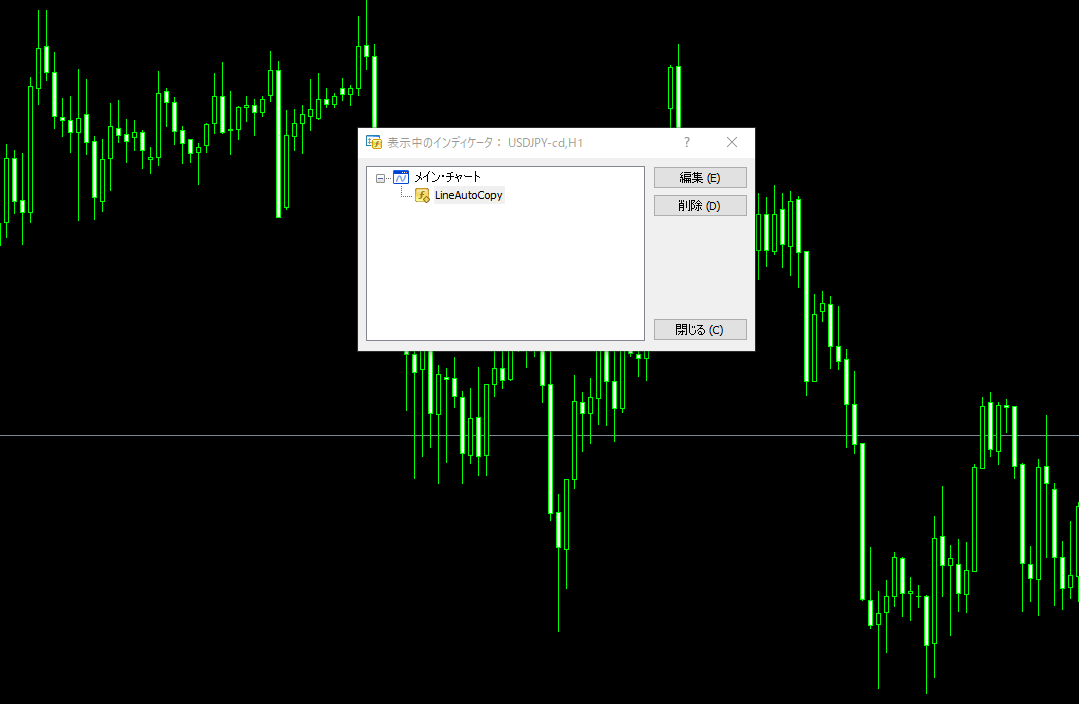
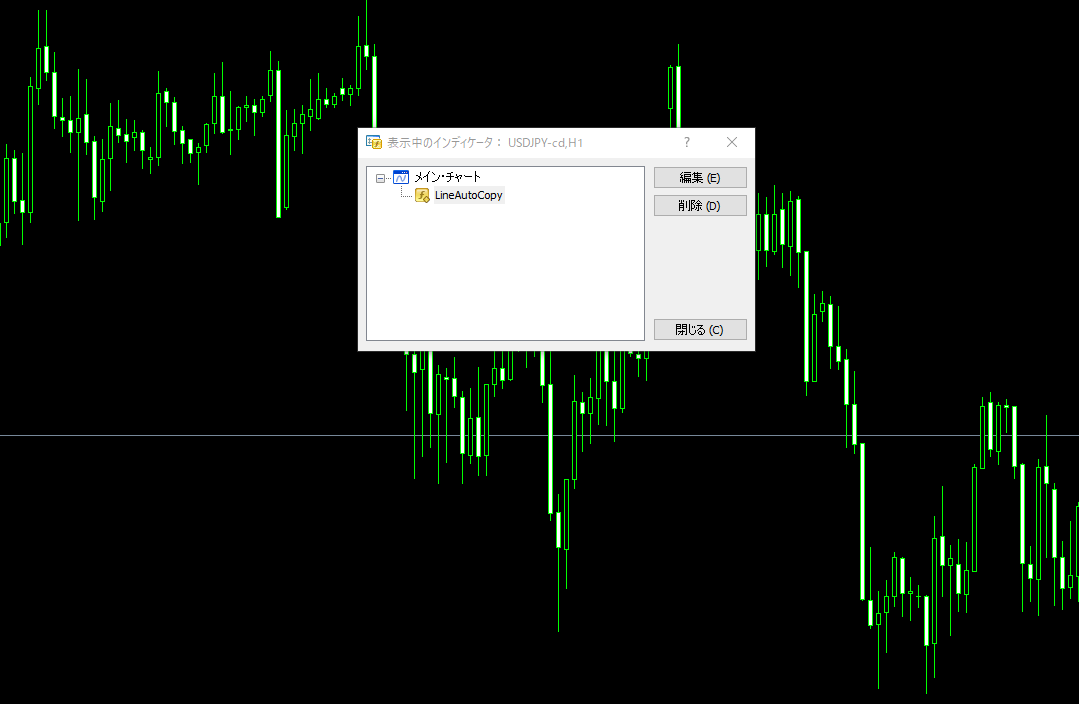
Open the Indicator Settings Screen
Right-click the indicator on the chart,
“Indicators in Use” → select the target indicator → click “Edit”. -
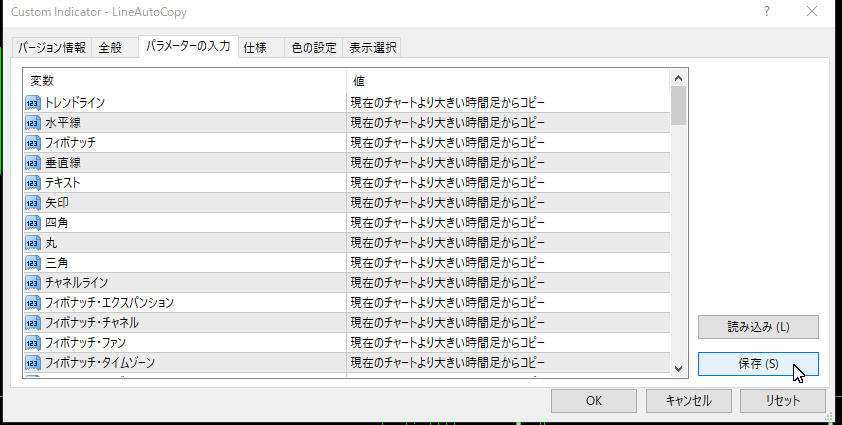
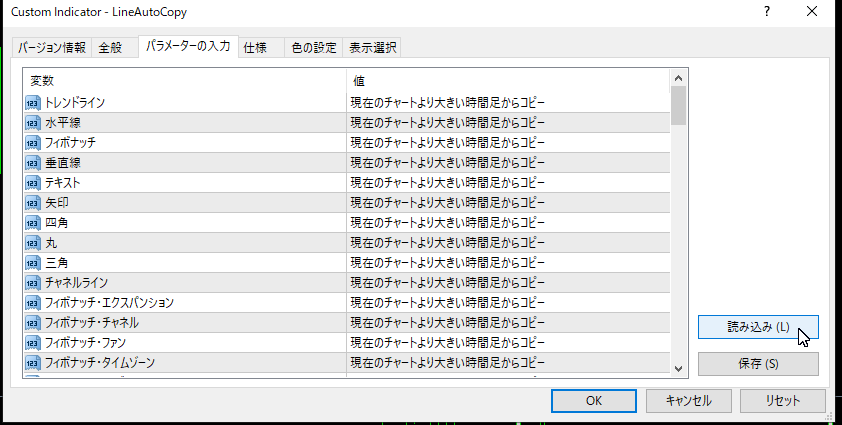
Save the Settings
Click the Save button at the bottom of the indicator settings screen. -
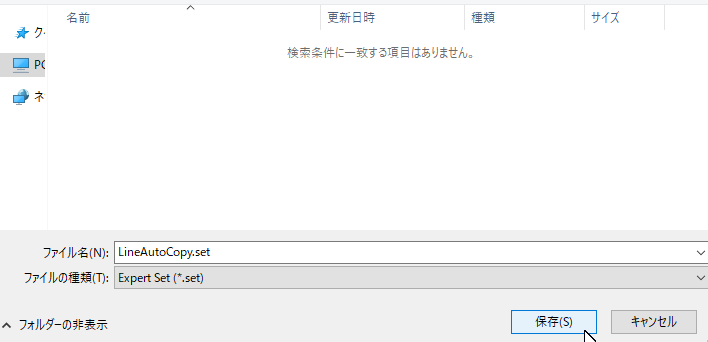
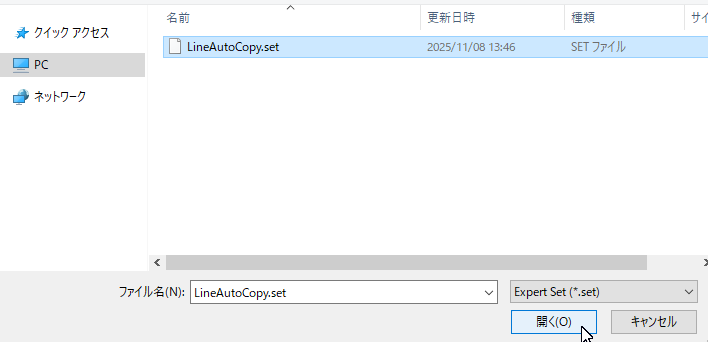
Enter a File Name and Save
Enter any file name and click “Save”.
The settings file uses the.setextension and is saved in the following location.MQL4/Presets/
■ Steps to Load Settings
-
Open the Indicator Settings Screen
Add the indicator to the chart or edit an indicator that is already displayed. -
Load the Saved Settings
Click the Load button at the bottom of the settings screen. -
Select the Saved File
From the displayed list, select the saved.setfile and click “Open”. -
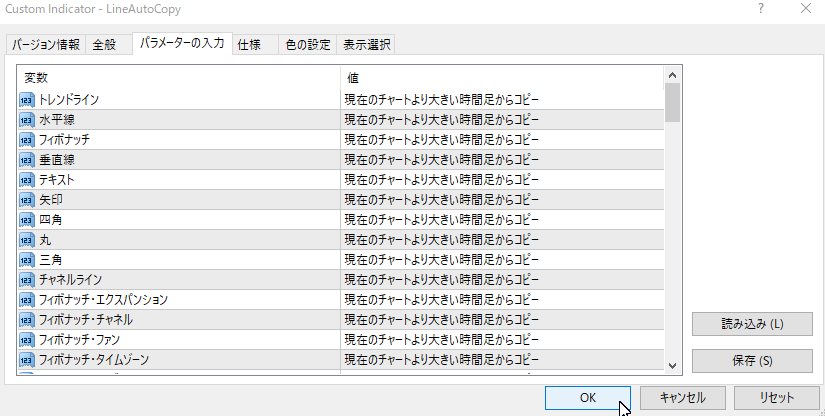
Apply the Settings
The loaded contents will be reflected in the settings screen, so click “OK” to complete.
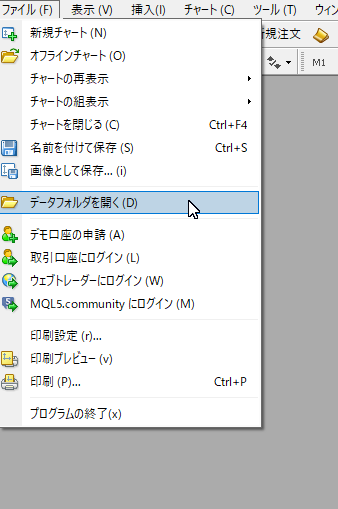
■ Verifying the Save File Location
- From the MT4 menu, select theFile menu →Open Data Folder.
- In the opened folder,
MQL4→Presets, you can see the saved.setfiles.
■ Important Notes
.setfiles can only be read correctly for the same indicator.- If using on another PC or another MT4, copy the target MT4’s
MQL4/Presetsfolder and then perform “Load”. - Renaming the file is OK, but do not delete the extension
.set.
■ Summary
Saving indicator settings as a file makes environment reconstruction and managing multiple patterns easier.
Commonly used settings can be saved as.set files and loaded as needed.